Using a connector in a Process Flow
This section guides you on how you can use an App Connector in a Process Flow to interact with a third-party application with which you want to exchange data. You can use an App Connector in a Process Flow as a Source or Destination by implementing an Application Action.
Using an Application Action
An Application Action enables you to use an App Connector as a Source, or Destination, or both in a Process Flow. An Application Action is an activity wherein you can select the required App Connector and define what data you want to fetch or send to the third-party application.
 |
|
The following example depicts how you can use App Connectors at Source and Destination in a Process Flow.
-
Expand Destination > Application, and then drag and drop the Application Action you want to use as the Source**.
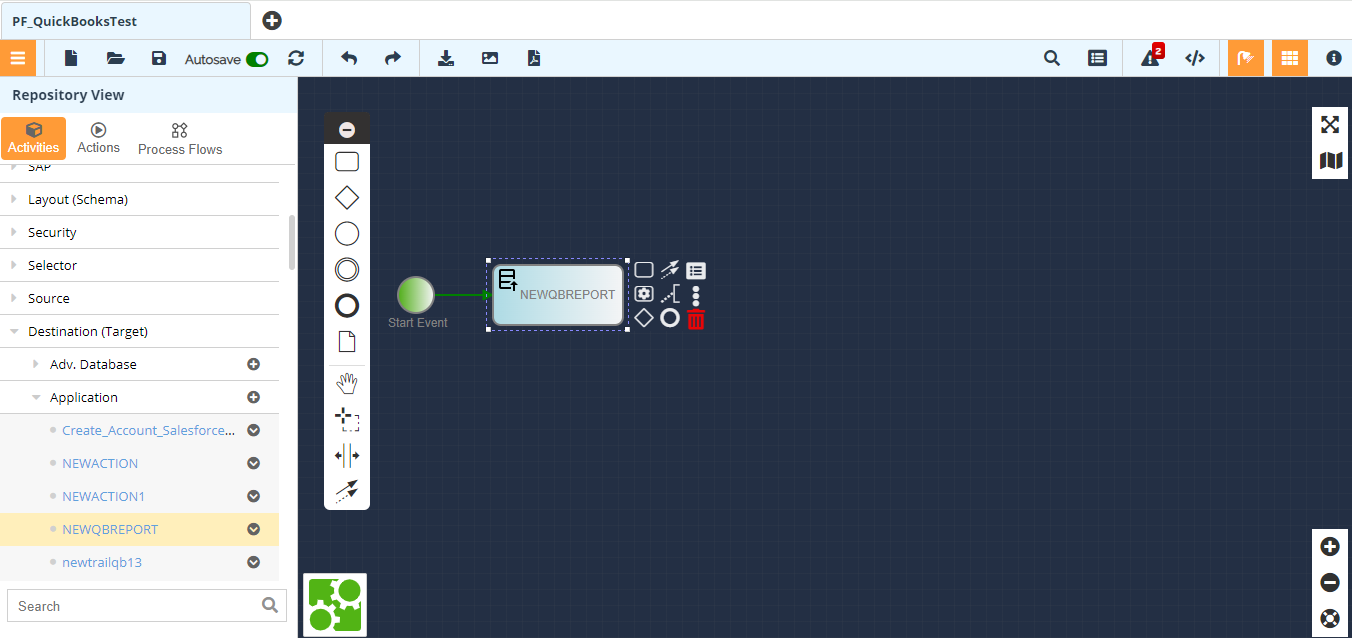
**You can also create and use a new Application Action by clicking  . For more details on creating an Application Action, refer to this section.
 -
Include a Mapping in the flow.
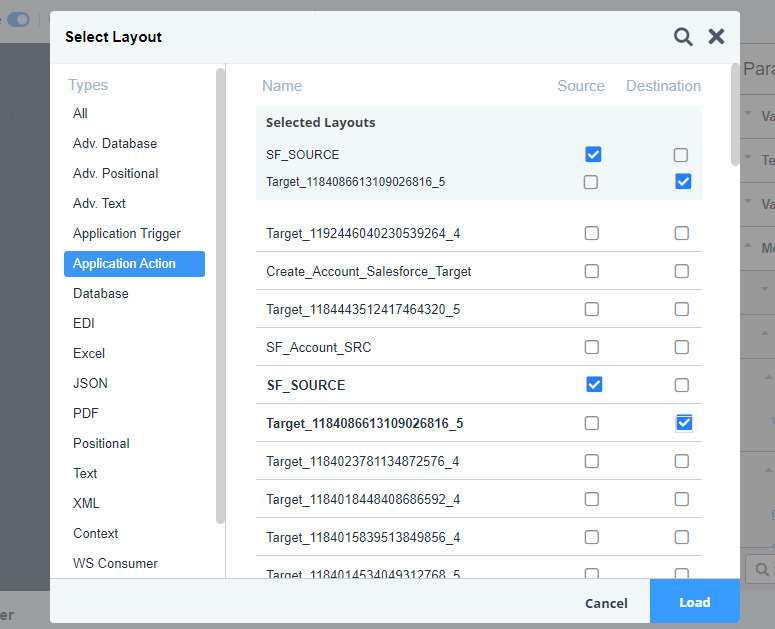
- You can include an existing Mapping or create a new one by clicking . In this example, the Mapping that has been used has the corresponding request XML Layouts (created automatically when you create an Application Action) at the Source and Destination.
You can find the request XML Layouts at Configure > XML Layout manage page. They can be identified by their descriptions. - While creating the Mapping, you can use the Lookup function for a reference field (if available). For more details, refer to this page.
- In case the Destination is other than an Application Action, the Mapping must have the Destination Layout, for example, Text Layout, created for the Destination to be selected in the Mapping.
- In case the Source is other than an Application Action, the Mapping must have the Source Layout, for example, Text Layout, created for the Source to be selected in the Mapping.
- You can include an existing Mapping or create a new one by clicking
-
Expand Destination > Application, drag and drop the Application Action you want to use as the Destination, and then save the Process Flow.
Using an Application Trigger
An Application Trigger is required when you want to:
- Fetch event driven data from a third-party application based on a polling frequency.
- Use a file-based connector, for example, Dropbox as a Source.
It can only be used as a Source in a Process Flow. An Application Trigger is an activity wherein you can select the required App Connector, Trigger, and polling frequency.
To use an Application Trigger in a Process Flow, do the following:
