Zoho CRM trigger and action conditions
All the app connectors in Adeptia Connect have a set of fetch actions such as All Records, to fetch data from their respective applications. For a fetch action, you can use a condition to set filters based on which you may want to fetch specific data from the API.
This has been illustrated below by using All Records fetch action in a Template/Transaction as an example.
 | In case of a Process Flow:
|
-
While defining the Source in a Template or Transaction, at the Choose Trigger step, select a Trigger based on which the AC application fetches the data from Zoho CRM.
-
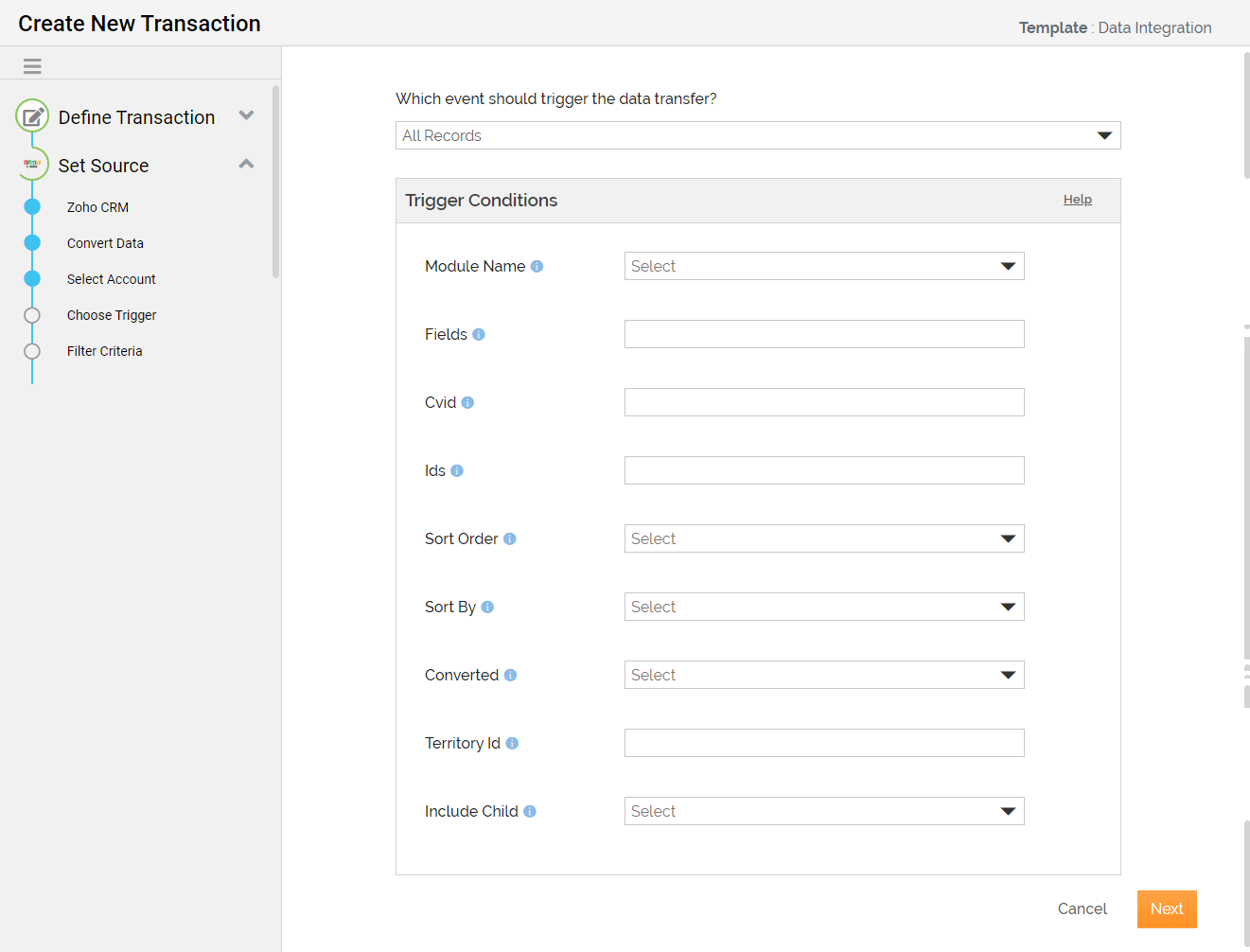
In the Trigger Conditions section, define the conditions.
For example, if you have used Zoho CRM as the Source and selected All Records as the Trigger, in the Module Name field you can select a category corresponding to which you want to send or retrieve data.
-
Click Next.
-
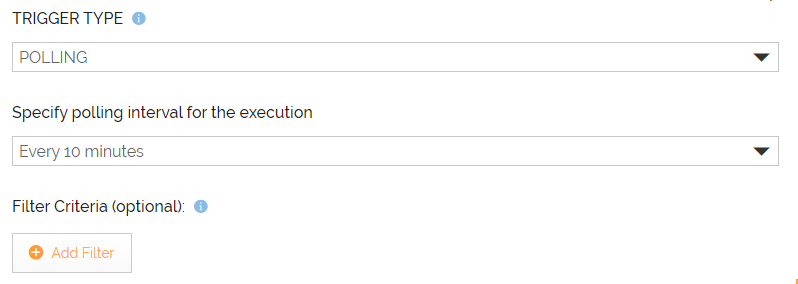
At the Filter Criteria step, define the filter criteria to further filter the fetched data.
-
Define the Destination.

The steps given in this section help you define Zoho CRM as the Destination in a Template/Transaction. -
Follow the instructions in the wizard to complete the creation of the Template/Transaction.