Microsoft Dynamics CRM trigger and action conditions
All the app connectors in Adeptia Connect have a set of fetch actions such as, All Records, to fetch data from their respective applications. For a fetch action, you can use a condition to set filters based on which you may want to fetch specific data from the API.
This has been illustrated below by using All Records fetch action in a Template/Transaction as an example.
 | In case of a Process Flow:
|
-
While defining the Source in a Template or Transaction, at the Choose Trigger step, select a Trigger based on which the AC application fetches the data from Microsoft Dynamics CRM.
-
In the Trigger Conditions section, define the conditions.
For example, if Get Record is used as the trigger, do the following:
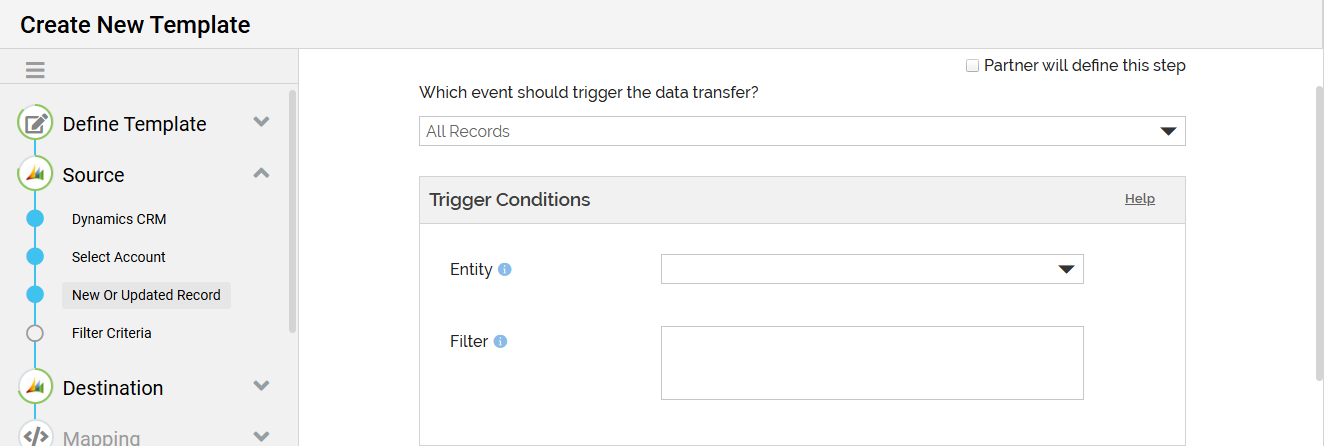
- In the Entity field, specify an entity, for example, Items, Employees, or Customers, etc., corresponding to which you want to retrieve data.
- In the Record Id field, enter an Id based on which you want to fetch the record from the selected entity.
-
Click Next.
-
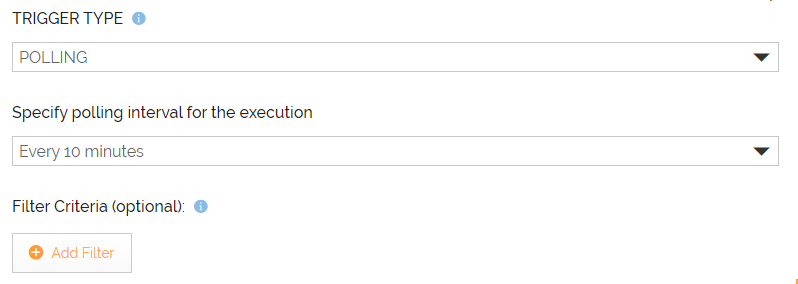
At the Filter Criteria step, define the filter criteria to apply a filter on the fetched data.
-
Define the Destination.

The steps given in this section help you define Microsoft Dynamics CRM as the Destination in a Template/Transaction. -
Follow the instructions in the wizard to complete the creation of the Template/Transaction.