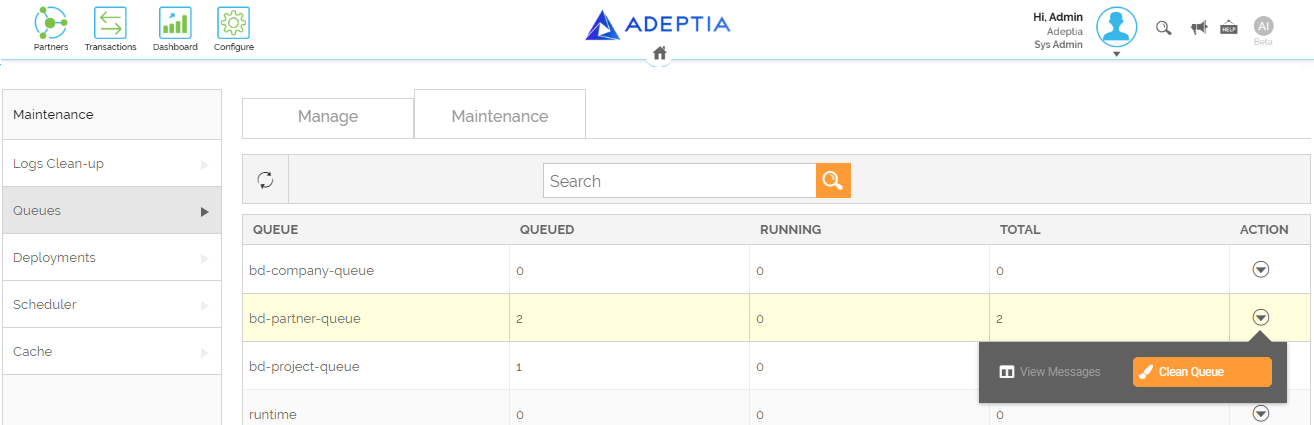
Working with Queues
In Adeptia Connect you get an intuitive user interface to further work on the Queues that you have created. It shows the details -- running, queued, and the total number of Process Flows and Transactions in the Queues and also enables you to take the following actions on the Queues.
- View Messages
- Clean Queue
- Search for a Queue
- Refresh the list containing the Queues
Viewing the details
You can see the total number of Process Flows and Transactions in the Queues and also see how many, out of the total, are in running and queued (ready) state. To view these details, follow the steps given below:
- On the Account menu, click Tools > **Maintenance.
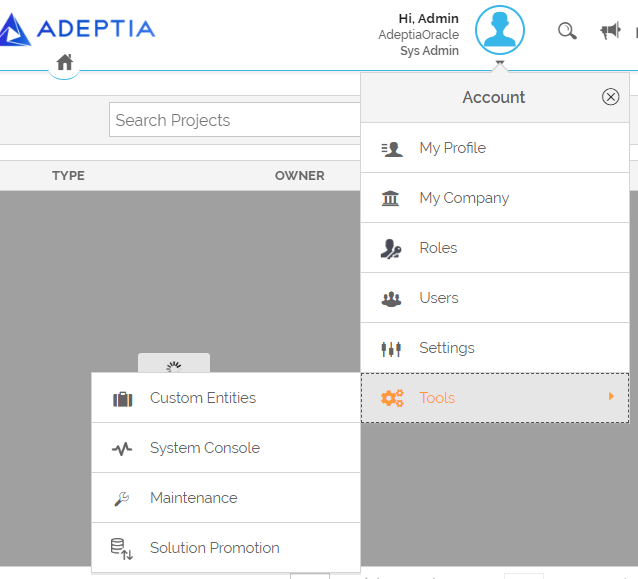
** - In the left panel, select Queues.
- On the Queues screen, select Maintenance.
This lists all the Queues that are in the ON (Active) state with their respective details as shown in the following screenshot.
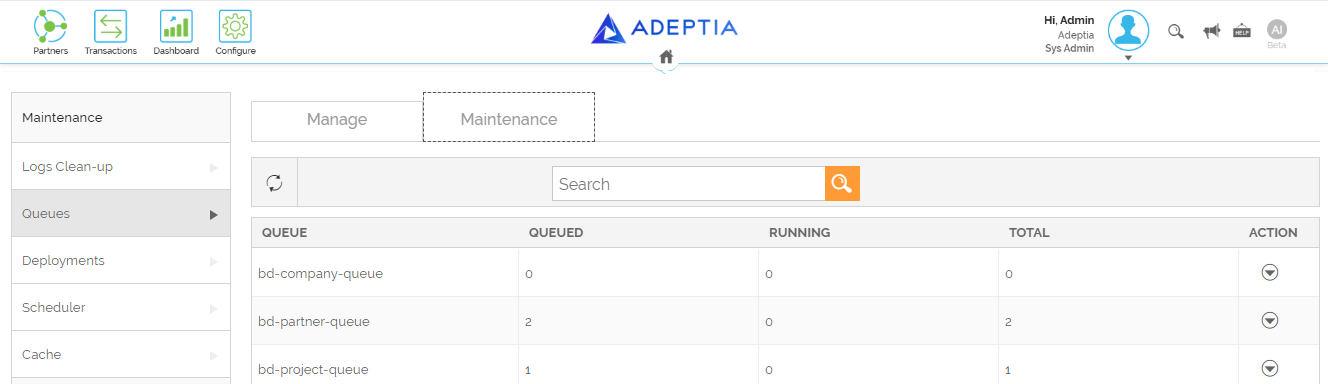
 |
|
 . </ch:anchor>
 icon to reload the list containing all the Queues.
View Messages
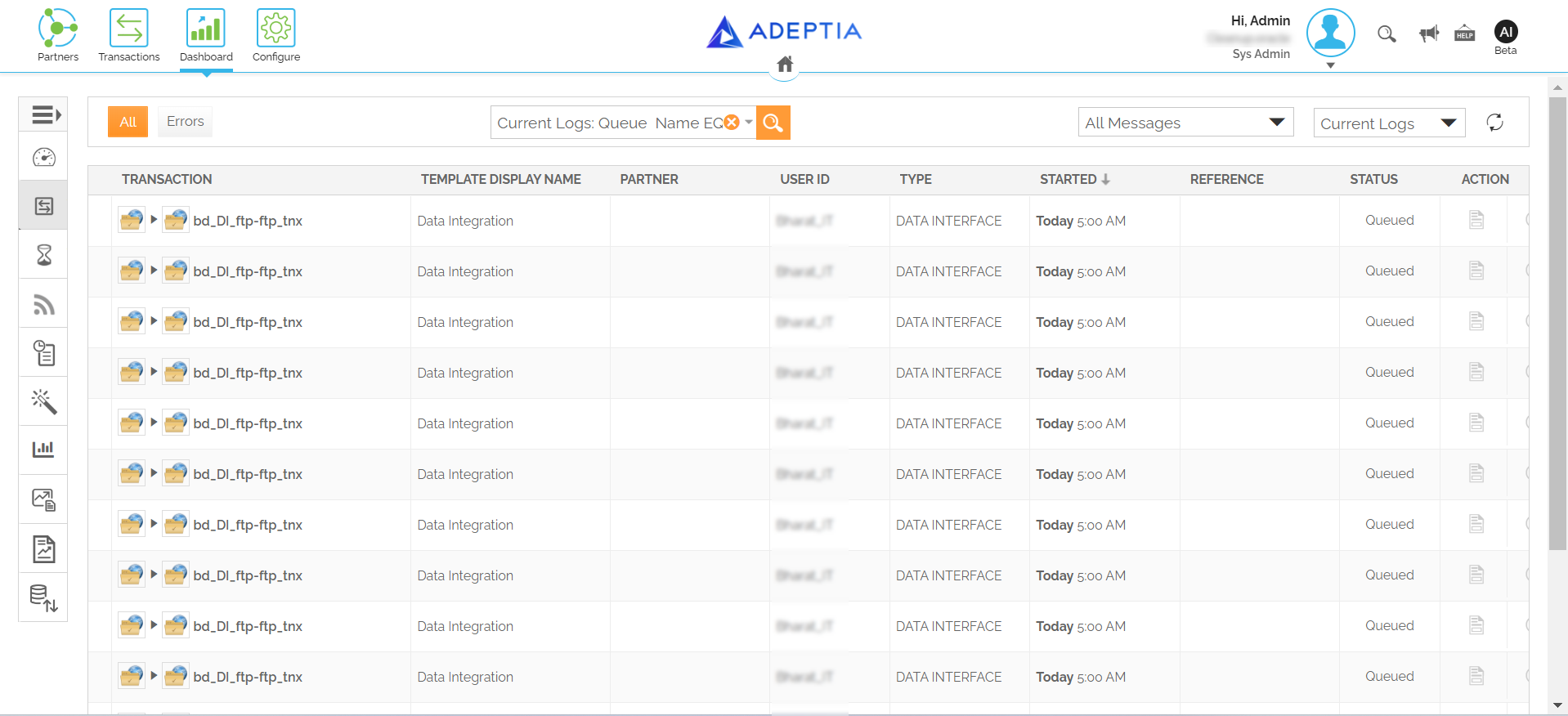
The View Messages option enables you to know which Transactions and Process Flows are in queued and running state and also shows other details about them. To view these details, follow the steps given below:
-
On the Account menu, click Tools > Maintenance.
-
In the left panel, select Queues.
-
On the Queues screen, select Maintenance.
-
Click More
 under Action against the Queue whose details you want to view.
 -
Click View Messages.
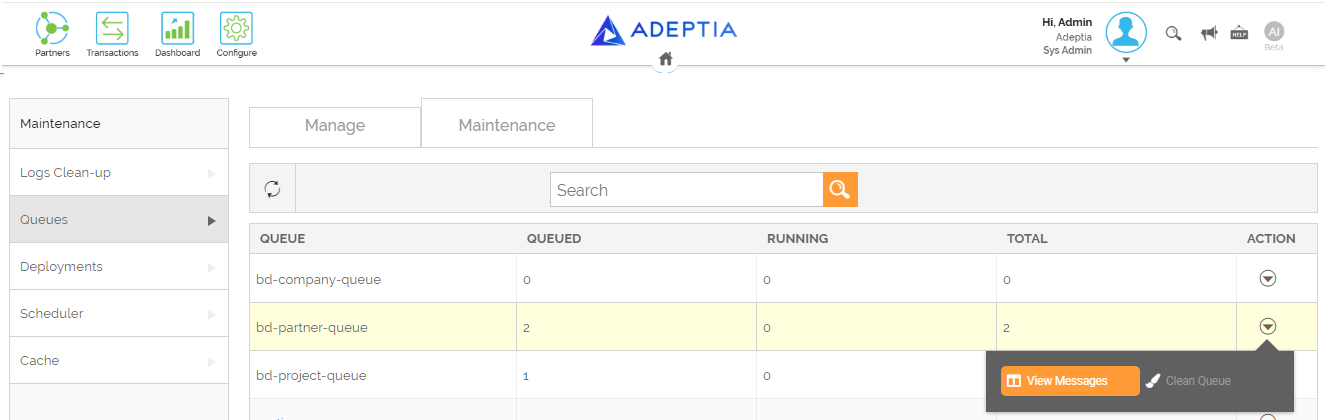
This opens the Dashboard with the required details.
Clean Queue
The Clean Queue option removes all the Process Flows and Transactions that are in the Queued state from the selected Queue and clears the corresponding logs from the Dashboard. To achieve this, follow the steps given below:
- On the Account menu, click Tools > Maintenance.
- In the left panel, select Queues.
- On the Queues screen, select Maintenance.
- Click More under Action against the Queue whose queued Process Flows and Transactions you want to remove.
- Click Clean Queue.