Profile
This document explains how to manage and update your account profile information in the application. You will learn how to edit personal details such as your name, title, and profile picture. If you have Sys Admin privileges, you can also update your registered email address. Additionally, the guide covers the steps to securely reset your account password to maintain your account’s security.
Certain information like your Company/Partner name and assigned Role cannot be changed through the profile settings.
Follow the instructions below to keep your profile information current and secure.
Editing profile information
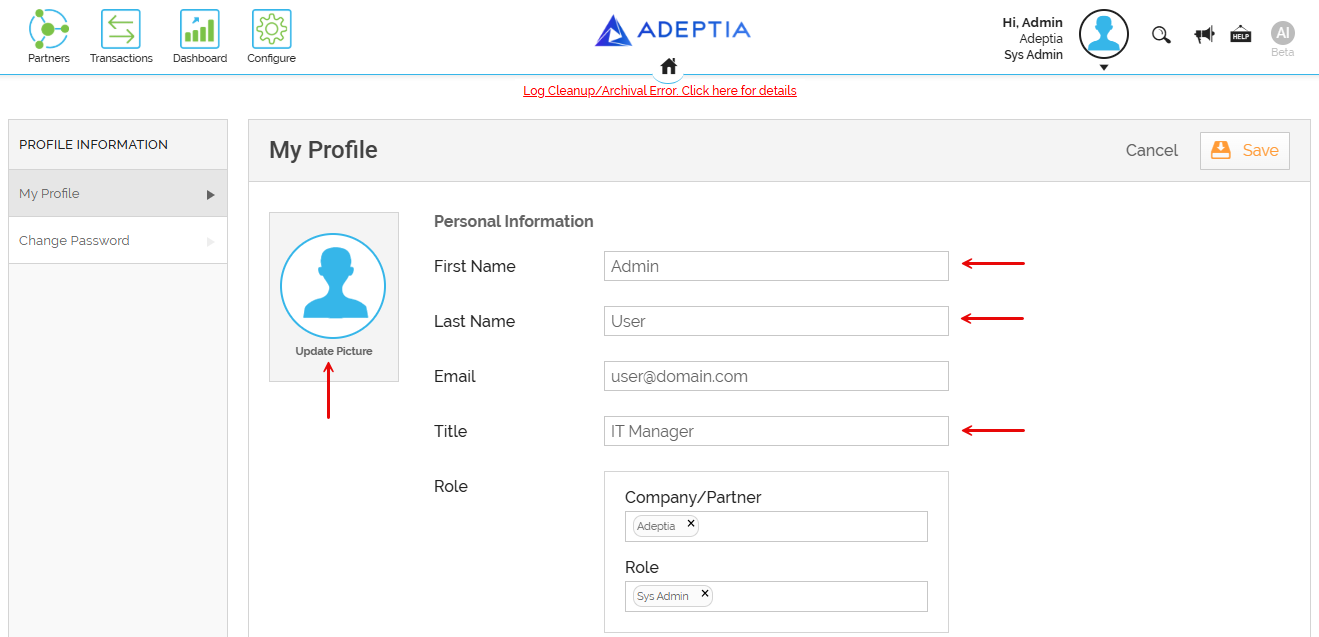
Follow the steps below to update your profile information, including your First Name, Last Name, Title, and profile picture.
 | You cannot change Company/Partner name and the Role assigned to you. |
-
Click Account > My Profile.
-
In the left panel, select My Profile.
-
On the My Profile screen, click
 .
. -
Edit the First Name, Last Name, and Title as needed.
To upload a profile picture, click Update Picture.
-
Click S****ave.

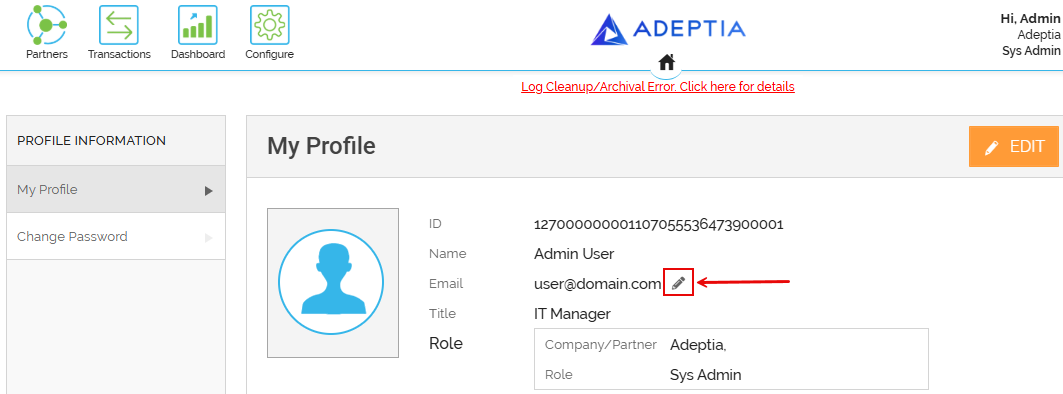
As a Sys Admin you can also update your email id by using Edit
 option next to the Email field. Follow the steps given below to update the email id.
- On the My Profile screen, click next to the Email field.
- On the Update Email screen, in the New Email field, enter the email id you want to register, and then click Continue.
- On the screen that opens, in the Password field, enter the password with which you are logged in to the application.
- Click Save.
- On the My Profile screen, click
Resetting the password
Follow the steps given below to change your profile password.
- Click Account > My Profile.
- In the left panel, select Change Password.
- On the Reset Password screen, do the following:
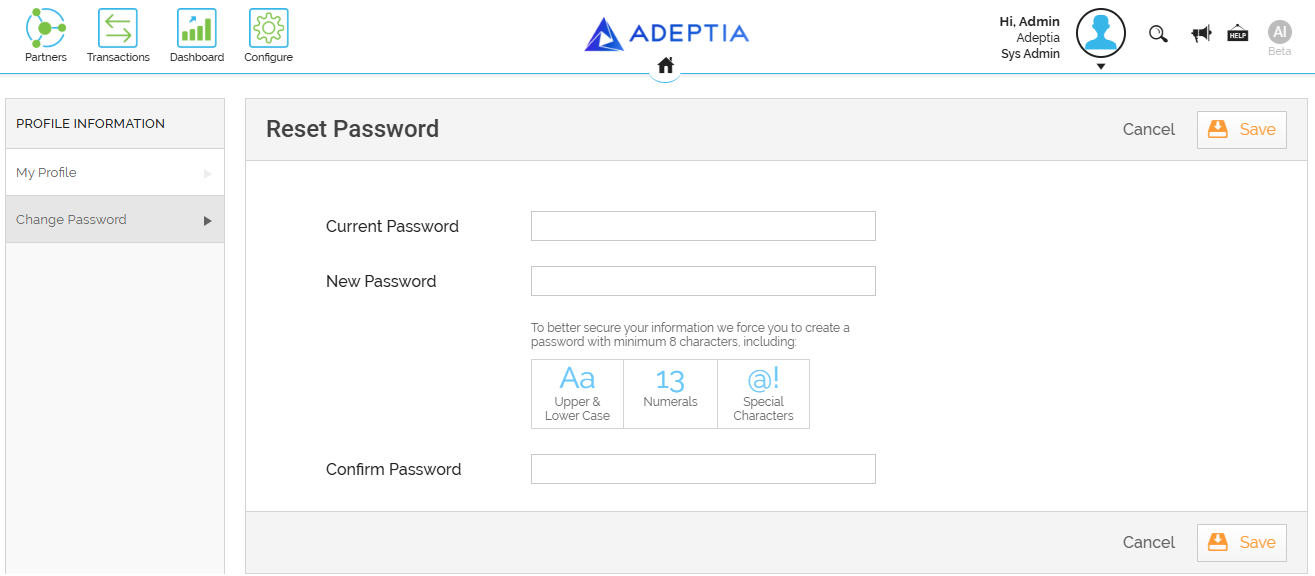
- In the Current Password field, enter the password using which you are currently logged in to the application.
- In the New Password field, enter the password you want to set for your account. The new password you enter must contain:
- At least 8 characters
- At least one uppercase and one lowercase letter
- At least one number
- At least one special character
- In the Confirm Password field, re-enter the new password to confirm it. This must exactly match the password entered in the New Password field above.
- Click Save.