Adeptia Connect now supports GAC in Custom Solutions pages. This feature helps to provide role-based access to the users based on the defined permission in custom solution pages.
 | The Custom Entity tab is only visible to the System Admin User. |
This page contains the following information:
Creating Custom Entity
-
Click Account > **Custom Entities.
** -
Click ******CREATE Custom Entity.
-
On the Create Custom Entity screen, enter the name and description of the new Custom Entity in the Name and Description textboxes respectively.
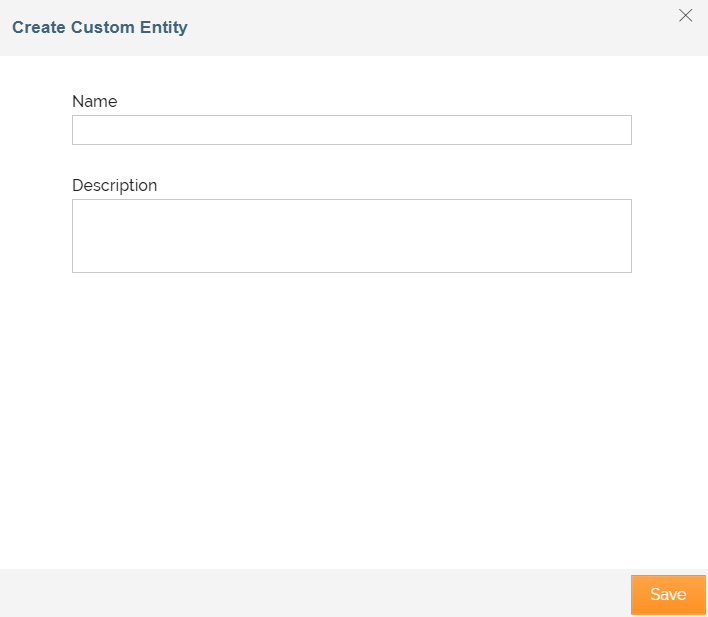
The name should be a unique name and can be up to 48 characters long. The description of the Custom Entity can be up to 300 characters long. -
Click Save.
-
Once the custom entity is created, you can create a custom role to define permission for the custom entity.
Viewing Custom Entity
Once the custom entity is created, you can view role details.
Steps to view custom entity details:
- Click Account > Custom Entities.
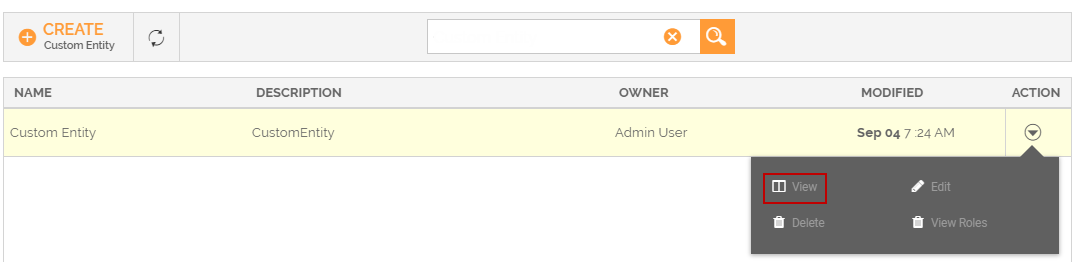
- On the Custom Entities screen, do one of the following:
- Click the name of the custom entity to view details.
- Click
 > View.
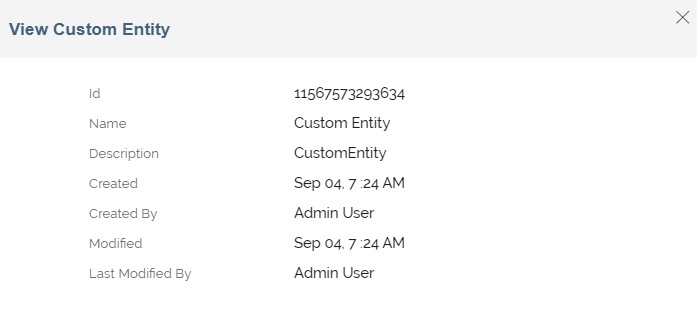
- On the View Custom Entity window, view the details of the Role.
Editing Custom Entity
You can modify the details of the custom entity specified while creating. Only a System Admin User can edit custom entity details.
To edit custom entity details:
-
Click Account > Custom Entities.
-
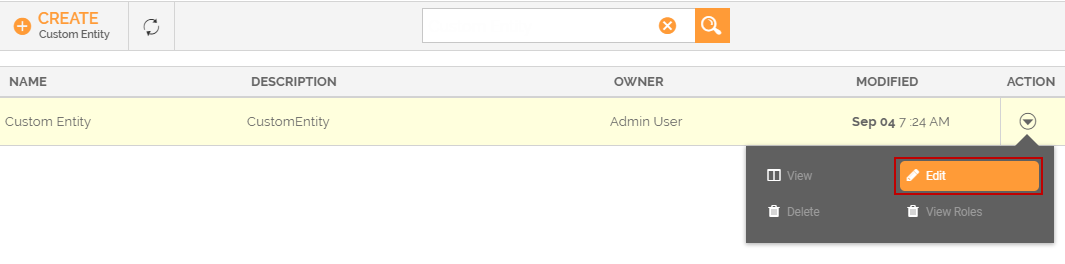
On the Custom Entities screen, click
> Edit.
-
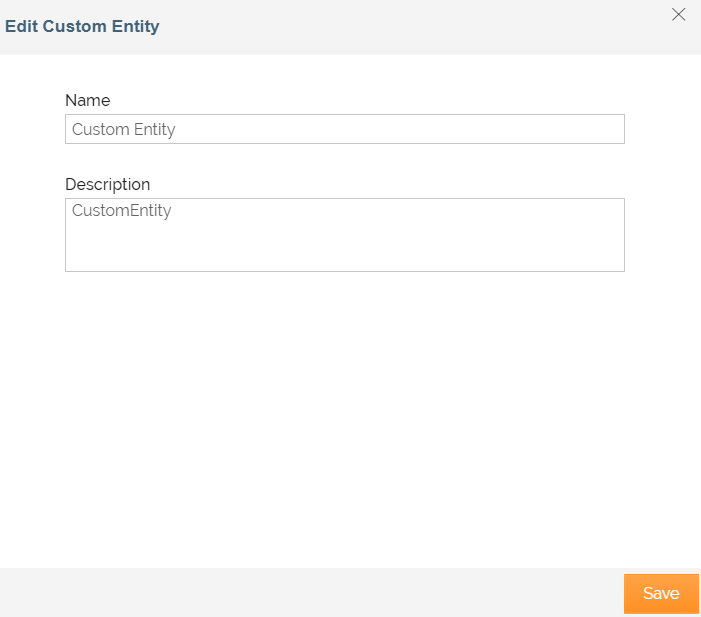
On the Edit Custom Entity screen, edit the details.
-
Click Save.
A message is displayed confirming that the Custom Entity has been saved successfully.
Deleting Custom Entity
You can delete Custom Entity if a role is not assigned to it. Therefore, before deleting a custom entity, ensure that no role is associated with the custom entity.
To delete a Custom Entity:
-
Click Account > Custom Entities.
-
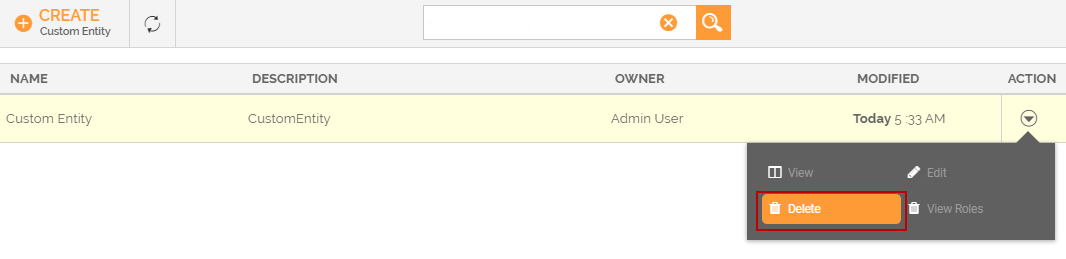
On the Custom Entities screen, click
> Delete.
-
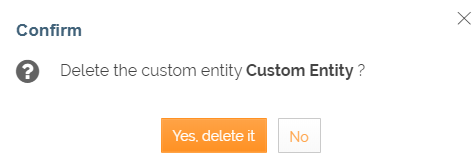
Click Yes, delete it, when prompted to confirm.
If you attempt to delete a Custom Entity that is assigned to a role, an alert message is displayed. 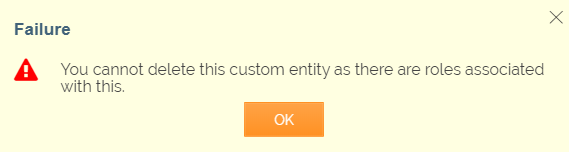
A message is displayed confirming that the custom entity has been deleted successfully.
Viewing Roles
You can view the roles that are associated with the custom entity.
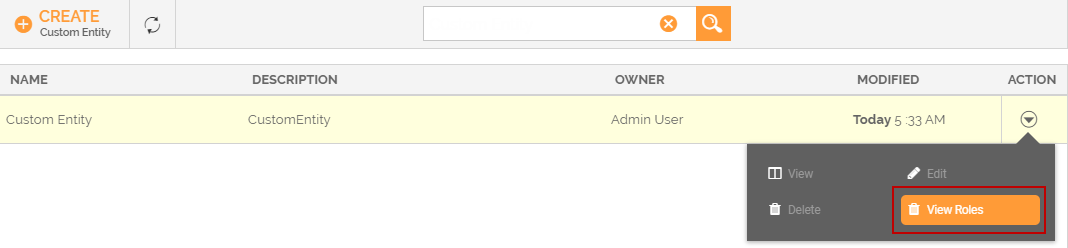
To view roles of Custom Entity:
-
Click Account > Custom Entities.
-
On the Custom Entities screen, click
> View Roles.
-
It displays the list of roles associated with this custom entity.
