With the PD Theme settings option, you can customize or modify the Process Designer UI. This gives you flexibility to set color for the Header, Pallete, Shapes, and Context pad. Following is the list of items that you can modify or customize. You can customize the theme with a Light or Dark option.
| Item | Description |
|---|---|
Header | Change the color of the Background, Icon, and Icon Hover. |
| Pallete | Change the color of the Background, Icon, and Icon Hover of the Pallete menu. |
| Shapes | Set the color of Activity, Gateway, Events, Data Object, Border, and Label. You can also modify the width and height of Events, Activity, Gateway, and Data Object. Option to change Label Font size. |
| Context Pad | Change the color of the Icon and Icon Hover. |
Changing PD Theme settings
To customize the PD Theme Settings:
-
Click Account > My Company.
-
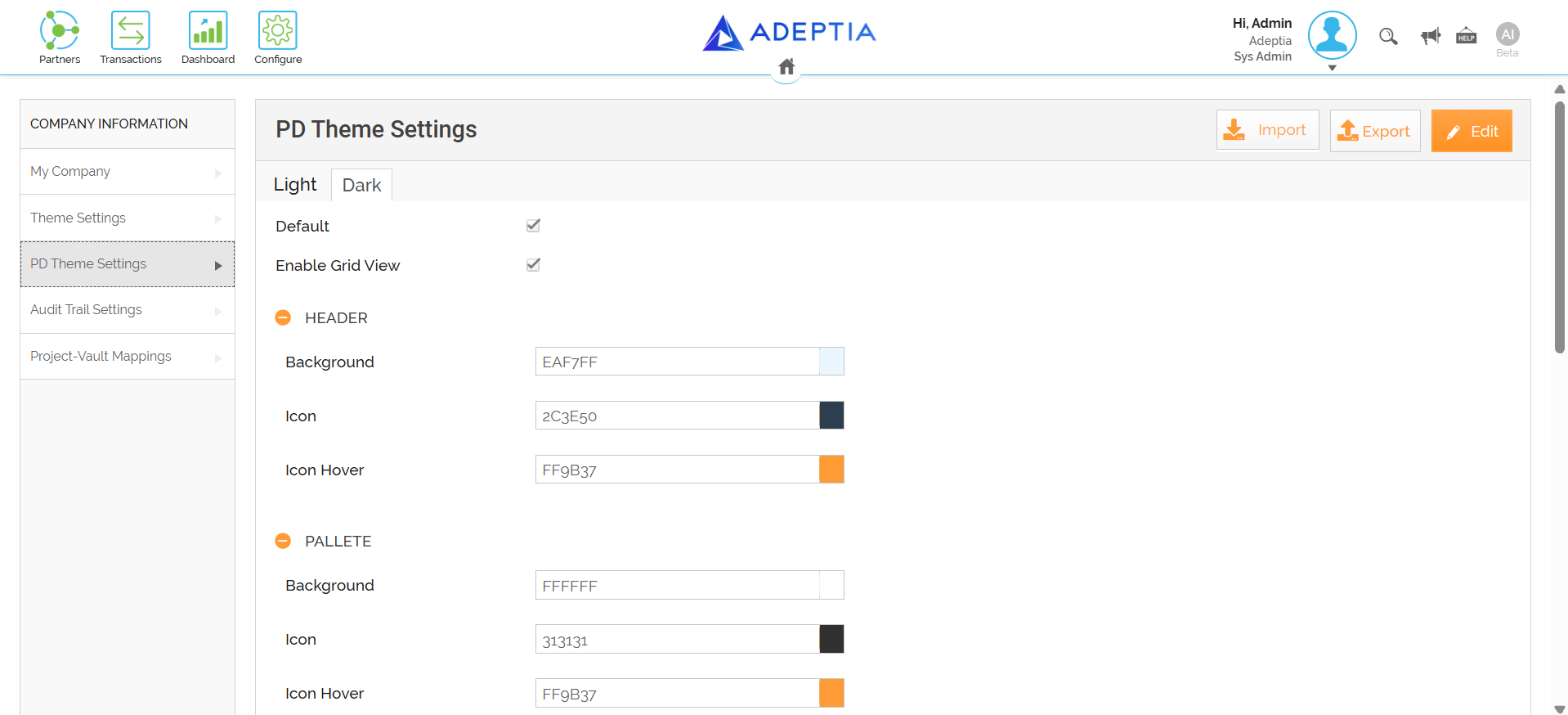
Select PD Theme Settings from the left pane.
-
Select the Light or Dark theme option. By default, a Dark theme is selected.
-
You can clear the checkbox to disable the Grid View and Default Theme.
-
You can modify or customize settings for different items in Process Designer.
[+] Header
[-] Hide
Click  and expand HEADER
- To change the Icon Hover color, click the color box next to the Icon Hover option and pick a color from the palette that appears.
Alternatively, you can also write the standard color code for any desired color if any color is not present in the palette.
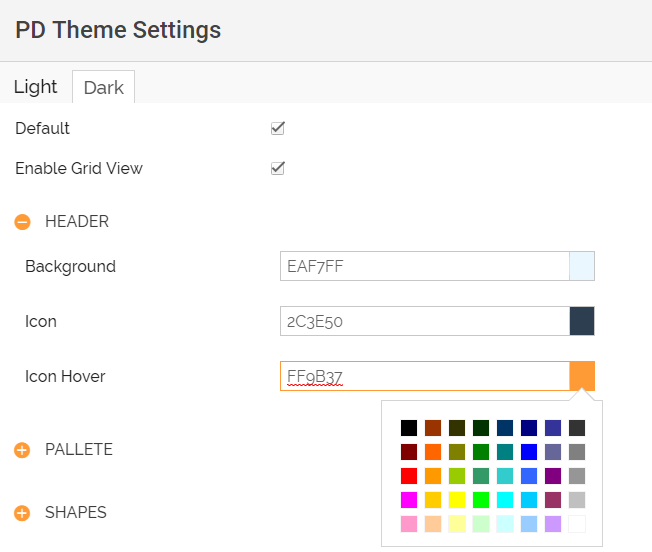
- Select the desired color for the Background and Icon.
- Click Save and refresh the process designer browser tab to update the theme settings.

[+] Shapes
[-] Hide
Click and expand **SHAPES
**
-
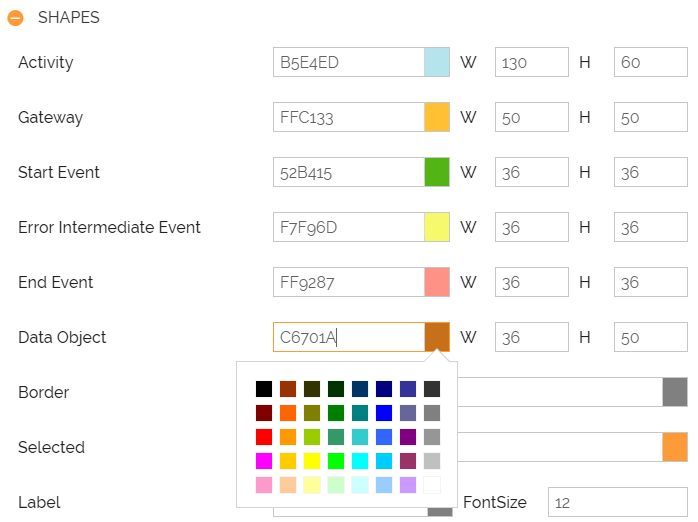
To change the color of the listed shapes, click the color box next to the activity and pick a color from the palette that appears.
Alternatively, you can also write the standard HTML code for any desired color if any color is not present in the palette.For example, changing the color of a Data Object.
-
Enter the value of width and height in the respective textbox of shapes (Data Object).
-
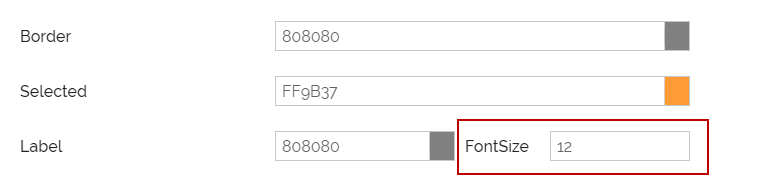
You can change the Font Size of the Label. Enter the font size in the FontSize text box.
-
Click Save. The application refreshes itself to reflect the changes.
-
Click Save and refresh the process designer browser tab to update the theme settings.
[+] Context Pad
[-] Hide
Click and expand CONTEXT PAD
- To change the Icon Hover color, click the color box next to the Icon Hover option and pick a color from the palette that appears.
Alternatively, you can also write the standard HTML code for any desired color if any color is not present in the palette.

- Select the desired color for the Icon.
- Click Save and refresh the process designer browser tab to update the theme settings.
[+] Restore to Default
[-] Hide
In edit mode, click Reset to default to restore all PD theme settings to their default state.
