EDI Dashboard
EDI dashboard displays detailed information related to the execution of your EDI and EDIFACT Transactions. You can verify the status of the Transaction execution, execution details, errors occurred during execution, errors detail, etc.
 | When GAC is enabled: • You can see the details on the EDI dashboard based on the network and the role you have been assigned. • The sensitive information in some of the fields in the EDI logs is masked for an unauthorized user if the View User Data check box is unchecked while defining the permissions for that user. |
|---|
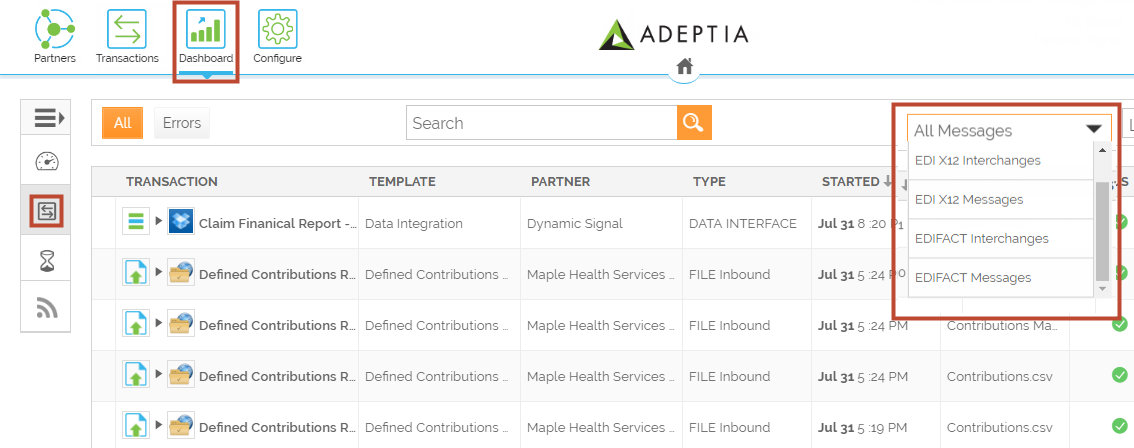
To view EDI dashboard:
- Click Dashboard
 tab on the home page.
 - On the Dashboard screen, click Transactions
 in the left pane.
 - Click All Messages and select the option as per your choice to view EDI X12 or EDIFACT Interchanges or Messages.
EDI X12 Interchanges
All the EDI X12 Interchanges (executed successfully or aborted) are displayed in this section. To view only aborted X12 Interchanges, click  .
.

| Option name | Option name | Description |
|---|---|---|
| Partner | Name of the Partner. | |
| Direction | Direction of the EDI X12 Interchanges. | |
| Type | Type of Transaction Set. | |
| Group | Receiver ID | Receiver ID of the Group. |
| Sender ID | Sender ID of the Group. | |
| Control | Control ID of the Group. | |
| Functional ID | Functional ID of the Group. | |
| Message Count | Number of Transaction Set in an EDI file. | |
| Status | Message | Status of the EDI Inbound or Outbound Transaction. The status can be SENT, TRANSLATED, QUEUED, ERROR, and RECEIVED. |
| FA | Acknowledgment status for Inbound or Outbound Transaction. A: Accepted E: Accepted, but errors were noted M: Rejected, message authentication code (MAC) failed P: Partially accepted, at least one transaction set was rejected R: Rejected W: Rejected, assurance failed validity tests X: Rejected, content after decryption could not be analyzed | |
| Log Message | Error details of the EDI Interchange, if any. | |
| File | In | Link to the input file used at the source. |
| Out | Link to the output file generated at the destination. | |
| Started | Date and time when the EDI Interchange started. | |
| Interchange | Receiver ID | Receiver ID of the Interchange. |
| Sender ID | Sender ID of the Interchange. | |
| Transmission Date | Transmission date of the Interchange. | |
| Control | Control number of the Interchange. | |
| T/P | T-Test or P-Production. | |
| Data View | EDI file used in the Transaction in PDF format. | |
| Action | View Data | Displays EDI Transaction log details. You can also view process flow details (running at the background of Adeptia Connect, that is, in the Developer's Studio), EDI translation error details, transaction set details, and repository files used in a transaction. Click here for more details. |
| Audit Log | Displays detailed logs of the process flow executed to process a Transaction. Click here for more details. | |
| Acknowledgment | Displays Functional Acknowledgment details of the Transaction Set. | |
| Resubmit | Resubmits EDI Interchange or Transaction Set that you have already sent. | |
| Manually Ack | Manually changes the FA Status of an Overdue acknowledgment. Click here for more details. |
You can also search a particular EDI Interchange. Click the arrow displayed in the Search text box. The Advanced Search window pop-up. Provide the details in the fields and click Search.
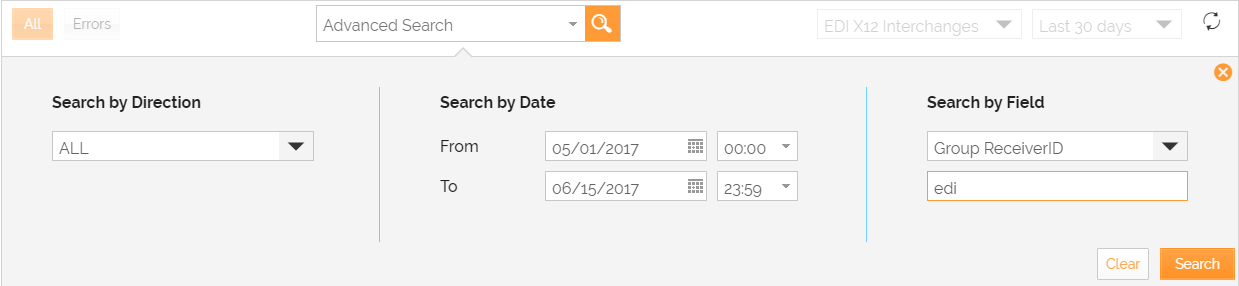
 | You can export the EDI X12 Interchanges logs to an Excel file by clicking  . The downloaded excel file name will be same as log page name, for example, EDI X12 Interchange.xlsx. It exports the logs that are displayed on the current page only. To export the logs for a specific page, you need to visit that page and perform the same action. . The downloaded excel file name will be same as log page name, for example, EDI X12 Interchange.xlsx. It exports the logs that are displayed on the current page only. To export the logs for a specific page, you need to visit that page and perform the same action. |
|---|
The following fields or the values in the EDI X12 Interchanges log page will be masked for unauthorized users:
- Under the File column, IN and OUT file links will be disabled. This will prevent the user from downloading the files.
- Additional Reference Field column (Track Variable) will be masked.
- Data View column will be disabled.
- View Data in More action menu will be hidden.
- RepositoryandContext Info links on the Audit log page will be hidden.
EDI X12 Messages
All the EDI X12 Messages (executed successfully or aborted) are displayed in this section. To view only aborted X12 Messages, click  .
.

| Option name | Option name | Description | |
|---|---|---|---|
| Partner | Name of the Partner. | ||
| Direction | Direction of the EDI X12 Messages. | ||
| Interchange Control Number | Control number of the Interchange. | ||
| File | In | Link to the input file used at the source. | |
| Out | Link to the output file generated at the destination. | ||
| Group | Receiver ID | Receiver ID of the Group. | |
| Sender ID | Sender ID of the Group. | ||
| Control | Control ID of the Group. | ||
| Transaction | Type | Type of Transaction Set. | |
| Control Number | Control number of the Transaction Set. | ||
| Status | Status of the EDI Message. | ||
| T/P | T-Test or P-Production. | ||
| Started | Date and time when the EDI Message execution started. | ||
| Action | Audit Log | View detailed logs of the process flow (running at the background of Adeptia Connect, that is, in the Developer's Studio) executed to process a Transaction. Click here for more details. | |
| Transaction Set | View details of the Transaction Set. | ||
| Repository | Repository of the files used in a Transaction. |
You can also search a particular EDI Message. Click the arrow displayed in the Search text box. The Advanced Search window appears. Provide the details in the respective fields and click Search.
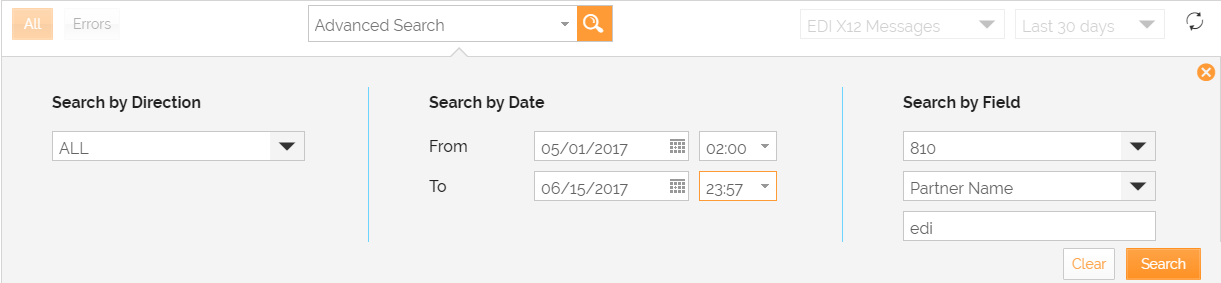
| You can export the EDI X12 Messages logs to an Excel file by clicking . The downloaded excel file name will be same as log page name, for example, EDI X12 Messages.xlsx. It exports the logs that are displayed on the current page only. To export the logs for a specific page, you need to visit that page and perform the same action. |
|---|
The following fields or the values in the EDI X12 Messages log page will be masked for unauthorized users:
- Repositoryin More action menu will be hidden.
- Transaction Set in More action menu will be hidden.
- Repositorylink in the Audit log page will be hidden.
- When user click the Context Info link on the Audit log page, an XML file will be downloaded. In this XML file, only sensitive value will be masked and the key will remain visible to the user.
EDIFACT Interchanges
All the EDIFACT Interchanges (executed successfully or aborted) are displayed in this section. To view only aborted EDIFACT Interchanges, click .

| Option name | Option name | Description |
|---|---|---|
| Partner | Name of the Partner. | |
| Interchange | Receiver ID | Receiver ID of the Interchange. |
| Sender ID | Sender ID of the Interchange. | |
| Control | Control ID of the Interchange. | |
| Transmission Date | Transmission date of the Interchange. | |
| T/P | T-Test or P-Production. | |
| File | In | Link to the input file used at the source. |
| Out | Link to the output file generated at the destination. | |
| Group | Receiver ID | Receiver ID of the Group. |
| Sender ID | Sender ID of the Group. | |
| Control | Control number of the Group. | |
| Message Type | Type of EDIFACT file. | |
| Message Count | Number of Transaction Set in an EDIFACT file. | |
| Status | Status of the EDIFACT Interchange. | |
| Log Message | Error details of the EDIFACT Interchange, if any. | |
| Started | Date and time when the EDIFACT Interchange started. | |
| Data View | PDF icon to download used EDIFACT file in PDF format. | |
| Action | View Data | View EDIFACT Transaction log details. You can also view process flow details (running at the background of Adeptia Connect, that is, in the Developer's Studio), EDIFACT translation error details, transaction set details, and repository of files used in a transaction. Click here for more details. |
| Audit Log | View detailed logs of the process flow executed to process a Transaction. Click here for more details. | |
| Resubmit | Resubmit EDIFACT Interchange or Transaction Set that you have already sent. |
You can also search a particular EDI Interchange. Click the arrow displayed in the Search text box. The Advanced Search window pop-up. Provide the details in the fields and click Search.

EDIFACT Messages
All the EDIFACT X12 Messages (executed successfully or aborted) are displayed in this section. To view only aborted EDIFACT Messages, click .

| Option name | Option name | Description |
|---|---|---|
| Partner | Name of the Partner. | |
| Receiver ID | Receiver ID of the Group. | |
| Sender ID | Sender ID of the Group. | |
| Control No | Control ID of the Group. | |
| Message Reference | Reference number of the message. | |
| Transaction Type | Type of Transaction Set. | |
| Status | Status of the EDIFACT Message. | |
| Started | Date and time when the EDIFACT Message execution started. | |
| Action | Audit Log | View detailed logs of the process flow (running at the background of Adeptia Connect, that is, in the Developer's Studio) executed to process a Transaction. Click here for more details. |
| Translation Error | Error details occurred in any Transaction Set. | |
| Transaction Set | View details of the Transaction Set. | |
| Repository | Repository of the files used in a Transaction. |
You can also search a particular EDI Message. Click the arrow displayed in the Search text box. The Advanced Search window appears. Provide the details in the respective fields and click Search.

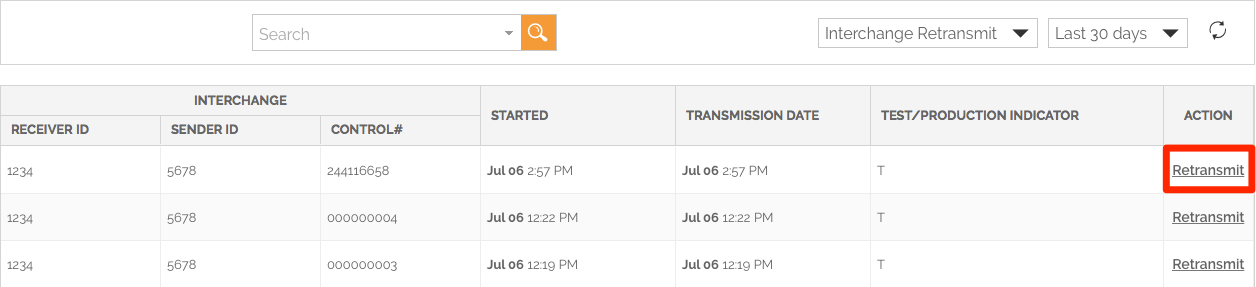
Interchange Retransmit All the Interchange Retransmit are displayed in this section. You can click Retransmit to retransmit the interchange from Dashboard screen.
| Option name | Option name | Description |
|---|---|---|
| Receiver ID | Receiver ID of the Group. | |
| Sender ID | Sender ID of the Group. | |
| Control No | Control ID of the Group. | |
| Started | Date and time when the EDIFACT Message execution started. | |
| Transmission Date | Dat and time of the Transmission | |
| Action | Retransmit | Click Retransmit to retransmit the Interchange from Dashboard. |
Transaction Retransmit All the Transaction Retransmit are displayed in this section. You can click select the Transaction Retransmit and click Retransmit button to retransmit the transaction from EDI Dashboard.

| Option name | Option name | Description |
|---|---|---|
| Partner | Name of the Partner. | |
| Group | Receiver ID | Receiver ID of the Group. |
| Sender ID | Sender ID of the Group. | |
| Control No. | Control number of the Group. | |
| Transaction | Type | The type of EDI Transaction. |
| Partner | Name of the Partner. | |
| Log Date/Time | Transaction log date and time. |
View Data
This action displays the details of EDI Transaction logs.
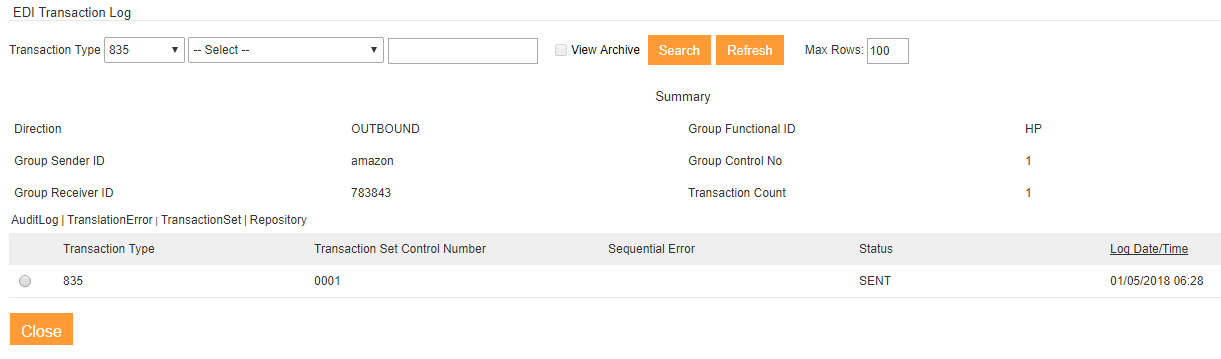
You can also view process flow details (running at the background of Adeptia Connect, that is, in the Developer's Studio), EDI translation error details, transaction set details, and repository files used in a particular transaction type.
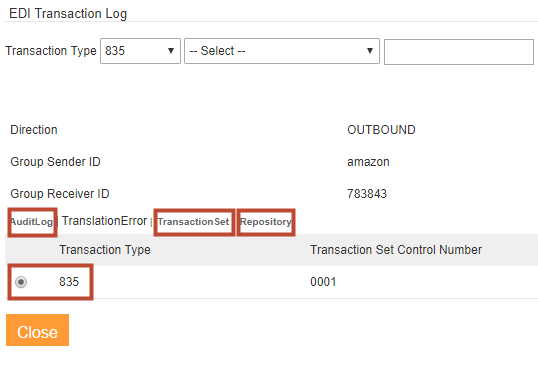
Click a particular Transaction type. This enables Audit Log, Transaction Set, and Repository options. Click the appropriate option to view details.
Audit Log
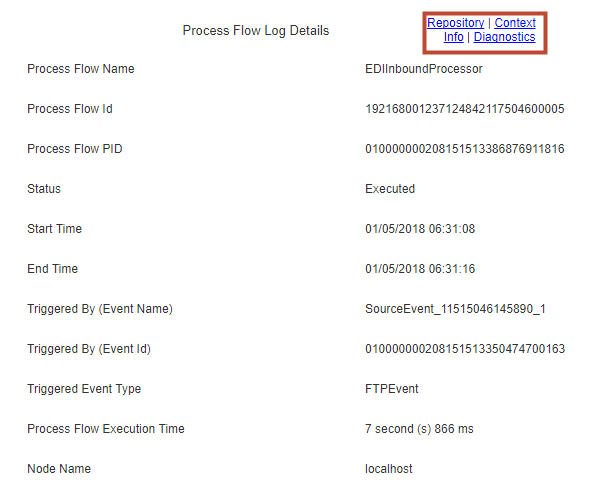
This action displays the detailed logs of a process flow executed to process a Transaction.
You can also view the repository files used in the process flow, context information, and process flow diagnostic information.
Sending Manual Acknowledgment
You can manually change the FA Status of an Overdue acknowledgment. To changes the status:
- Select an entry that has an Overdue status.
- Click
 > Manual Ack.
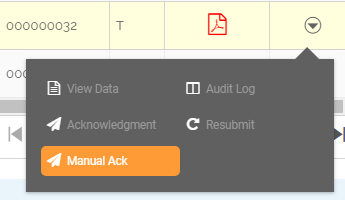 3. On the Select Acknowledgment Status screen, select the type you want to change to and then click Submit.

You may be interested in...