Launching Adeptia Connect - Linux
Apart from starting Adeptia Connect application manually, you can also configure it to be started automatically as a service at the start of your system running on Linux.
The details below guide you on how to start the application in both manual and automatic ways.
This page contains the following information:
- Starting Connect Server
- Prerequisite
- Starting Connect Server manually
- Starting Connect Server automatically as a Linux daemon
- Starting Connect Portal
- Prerequisite
- Starting Connect Portal manually
- Starting Connect Portal automatically as a Linux daemon
Starting Connect Server
This section guides you on how to start Connect Server manually and automatically.
Prerequisite
Configure the systemd service in your Linux operation system.
Starting Connect Server manually
To start or stop the Connect Server Kernel, WebRunner, and AIMap, follow the steps below:
- Open Terminal.
- Go to the directory ...<ConnectServerInstallFolder>/AdeptiaServer/ServerKernel.
- Type ./startup.sh to start.
To stop the services, type ./stop.sh.
 | AIMap services start and stop automatically along with Connect Server Kernel and WebRunner when you run the ./startup.sh and**./stop.sh** commands respectively. However, if you want to start or stop AIMap services individually, use the following commands: ./startAIMap.sh./stopAIMap.sh |
|---|
To ensure that Connect Kernel and Connect WebRunner are started successfully, go to the directory .../<ConnectServerInstallFolder>/AdeptiaServer/ServerKernel/logs/applicationlogs and type the following commands respectively:
- cat KernelApplication.log
- cat WebrunnerApplication.log
These commands will display the details of the KernelApplication.log and WebrunnerApplication.log files respectively. Ensure that these files contain the message that "Kernel has started successfully" and "WebRunner has started successfully".
Starting Connect Server automatically as a Linux daemon
 | Before you start, ensure that you are going to make these changes from within the root user account. |
|---|
Perform the following steps to start Connect Server as a daemon:
- Go to the folder ...<ConnectServerInstallFolder>/AdeptiaServer/ServerKernel.
- Openstartup.sh file.
- Update the path in the file as depicted in the example image given below.
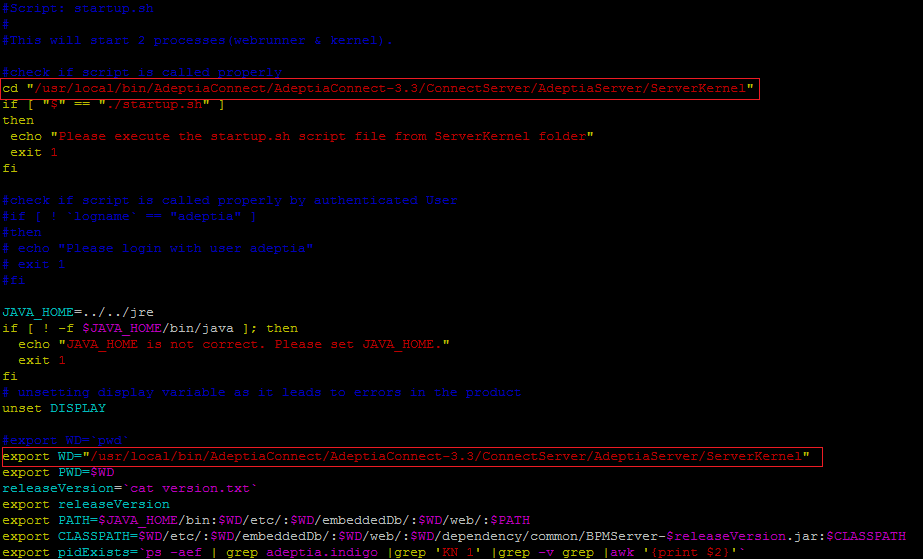
| Ensure that the: • Path you enter is as per the installed location of Adeptia Connect in your system. • startup.sh file has executable permissions for the root user. |
|---|
- Create a Systemd service file, “adeptiaconnectserver.service”, for the Connect Server at the following location: /etc/systemd/system.
Code
[Unit]
Description= Adeptia Connect Server
Documentation= https://docs.adeptia.com/

[Service]
Type=simple
RemainAfterExit=true
ExecStart=/bin/bash /usr/local/bin/AdeptiaBuild/AdeptiaConnect-3.3/ConnectServer/AdeptiaServer/ServerKernel/startup.sh

[Install]
WantedBy=multi-user.target
| Ensure that the path you enter is as per the installed location of Adeptia Connect in your system. |
|---|
- Run the following command to reload thesystemd daemon. systemctl daemon-reload
- Run the following command to start the Connect Server systemctl start adeptiaconnectserver
- Run the following command to enable the newly created service for the Connect Server to get started on system start-up. systemctl enable adeptiaconnectserver
The Connect Server will now start automatically whenever your system starts.
To stop or restart the Connect Server running as a daemon, use the following commands:
- To stop, run the following command: systemctl stop adeptiaconnectserver
- To restart, run the following command: systemctl restart adeptiaconnectserver
| After these changes, always make sure to start/stop/restart Connect Server as a daemon only. In case you want to use startup.sh or stop.sh to start or stop the Connect Server manually, make sure that the Connect Server is not running as a daemon. |
|---|
Starting Connect Portal
This section guides you on how to start Connect Portal manually and automatically.
Prerequisite
Configure the systemd service in your Linux operation system.
Starting Connect Portal manually
To start or stop the Connect Portal, follow the steps below:
- Open Terminal.
- Go to the directory ...<ConnectPortaInstallFolder>/bin.
- Type ./startup.shto start.
To stop the services, type ./stop.sh.
To ensure that Connect Kernel and Connect WebRunner are started successfully, go to the directory .../<ConnectPortalInstallFolder>/logs and type the command. cat catalina-YYYY-MM-DD HH-MM-SS.log
Ensure that these files contain the message stating Starting ProtocolHandler ["http-nio-80"].
Starting Connect Portal automatically as a Linux daemon
| Before you start, ensure that you are going to make these changes from within the root user account. |
|---|
Perform the following steps to start Connect Server as a daemon:
- Go to the folder**…<ConnectPortaInstallFolder>/bin**.
- Openstartup.sh file.
- Update the path in the file as depicted in the image given below.
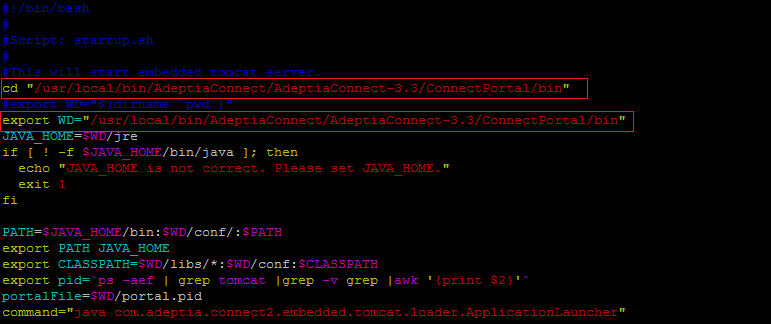
| Ensure that the: • Path you enter is as per the installed location of Adeptia Connect in your system. • startup.sh file has executable permissions for the root user. |
|---|
- Create a Systemd service file, “adeptiaconnectportal.service”, for the Connect portal at the following location: /etc/systemd/system.
Code
[Unit]
Description= Adeptia Connect Portal
Documentation= https://docs.adeptia.com/

[Service]
Type= simple

RemainAfterExit=true
ExecStart=/bin/bash /usr/local/bin/AdeptiaBuild/AdeptiaConnect-3.3/ConnectPortal/bin/startup.sh

[Install]
WantedBy= multi-user.target
| Ensure that the path you enter is as per the installed location of Adeptia Connect in your system. |
|---|
- Run the following command to reload the systemd daemon. systemctl daemon-reload
- Run the following command to start the Connect Portal systemctl start adeptiaconnectportal
- Run the following command to enable the newly created service for the Connect Portal to get started on system start-up. systemctl enable adeptiaconnectportal
The Connect Portal will now start automatically whenever your system starts.
To stop or restart the Connect Portal running as a daemon, use the following commands:
- To stop, run the following command: systemctl stop adeptiaconnectportal
- To restart, run the following command: systemctl restart adeptiaconnectportal
| After these changes, always make sure to start/stop/restart Connect Portal as a daemon only. In case you want to use startup.sh or stop.sh to start or stop the Connect Portal manually, make sure that the Connect Portal is not running as a daemon. |
|---|