Configuring SSL Handshake between Connect Server and Connect Portal - Linux
If you want to secure communication between Connect Portal and Connect Server then you need to configure SSL handshake between them.
Prerequisites:
Ensure that you are accessing Connect Portal and Connect Server using HTTPS protocol.
Configuring SSL Handshaking
You need to configure SSL handshake both in Connect Portal and Connect Server for secure communication.
Configuring Connect Portal
Exporting Public Key for Connect Portal
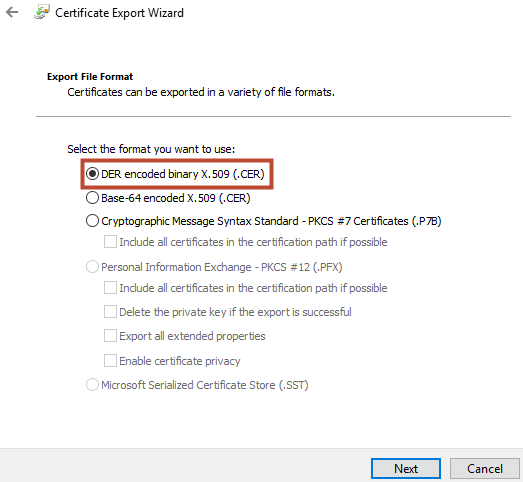
Exporting the public key of Connect Portal/External Load Balancer varies from browser to browser. It is recommended to export the key using DER encoded binary format X.509 (.CER). The following are the steps to export the public key in Google Chrome browser.
- Access Connect Portal URL using HTTPS protocol.
- Click
 > More tools >Developer tools.
 - Click Security tab.
- ClickView Certificate.
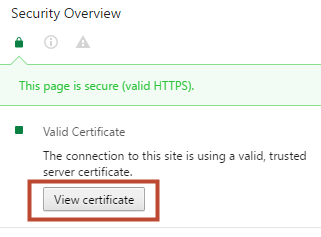
- On the Certificate window, on the Details tab, click Copy to File.
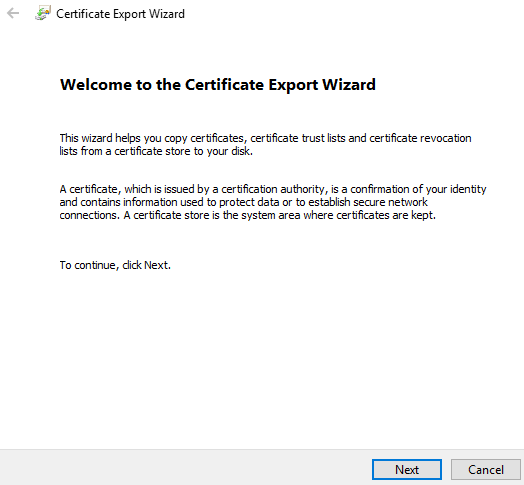
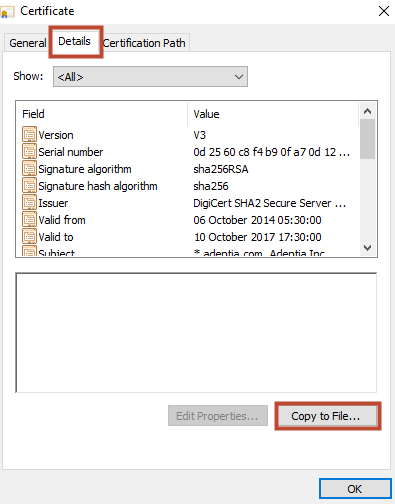 6. ClickNextto start exporting the certificate.
 7. ChooseDER encoded binary X.509 (.CER)and clickNext.
 8. Specify the location to save the exported file and clickNext.
 9. ClickFinish to export. A dialog box appears confirming the export process have been completed successfully.
10. Click OK to exit from the wizard.
9. ClickFinish to export. A dialog box appears confirming the export process have been completed successfully.
10. Click OK to exit from the wizard.
Importing Connect Portal/ External Load Balancer Certificate in Connect Server Truststore
- Open Terminal.
- Go to the directory where Connect Server JRE is installed (for example, /mnt/AdeptiaConnect/AdeptiaConnect-2.9/ConnectServer/jre/bin)
- Run the following Keytool command to import a certificate
keytool -import -trustcacerts -file <Path_of_SSL_Certificate> -alias <alias_name> -keystore <Path of Truststore file> -storepass <password>
where,
<Path_of_SSL_Certificate> is the path of SSL certificate.
<Path of Truststore file> is the path of Connect Server Truststore.
For example, keytool -import -trustcacerts -file "/home/adeptia/localhost.cer" -alias adeptia -keystore "/mnt/AdeptiaConnect/AdeptiaConnect-3.0/ConnectServer/AdeptiaServer/ServerKernel/etc/truststore/cacerts" -storepass changeit
Configuring Connect Server
Exporting Public Key of Connect Server or Internal Load Balancer
Exporting the public key of Connect Server/Internal Load Balancer varies from browser to browser. It is recommended to export the key using DER encoded binary format X.509 (.CER). The following are the steps to export the public key in Google Chrome browser.
- Access Connect Server using HTTPS protocol.
- Click > More tools >Developer tools.
- Click Security tab.
- ClickView Certificate.
5. On the Certificate window, on the Details tab, click Copy to File.
6. ClickNextto start exporting the certificate.
7. ChooseDER encoded binary X.509 (.CER)and clickNext.
8. Specify the location to save the exported file and clickNext.
9. ClickFinish to export. A dialog box appears confirming the export process have been completed successfully.
10. Click OK to exit from the wizard.
Importing Connect Server/Internal Load Balancer Certificate in Connect Portal Truststore
This section helps you to import Connect Server certificate in Tomcat Truststore. However, to import Internal Load Balancer for Connect Server cluster, you need to import Internal Load Balancer certificate.
Import SSL certificate from Internal Load Balancer or Connect Server to Connect Portal Truststore.
-
Importing Internal Load Balancer or Connect Server SSL certificate into Connect Portal Truststore
- Run the following Keytool command to import a certificate
keytool -import -trustcacerts -file <Path_of_SSL_Certificate> -alias <alias_name> -keystore <Path of cacerts file>
where,
<Path_of_SSL_Certificate> is the path of SSL certificate.
<Path of cacerts file> is the path of Connect Portal Truststore.
For example, keytool -import -trustcacerts -alias adeptia -file "/home/adeptia/localhost.cer" -keystore "/mnt/AdeptiaConnect/AdeptiaConnect-3.0/ConnectPortal/truststore/cacerts" 2. Type the keystore password. The default password for truststore is changeit. This command imports SSL certificate from Internal Load Balancer or Connect Server into the Truststore with an alias name adeptia.
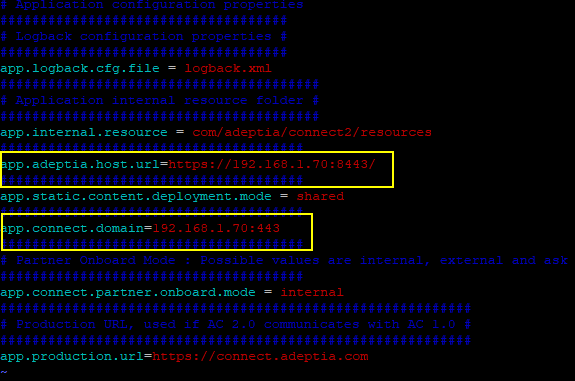
After you have configured SSL handshake between Connect Portal and Connect Server, you need to configure HTTPS URL in the app.adeptia.host.urland app.connect.domainproperties:
- Go to .../ConnectPortalInstallFolder> /resources_config.
- Openapplication.properties file in the Text Editor.
- Set the IP address or domain name using https protocol to access Connect Server and Connect Portal in the app.adeptia.host.urland app.connect.domain.
 4. Save the file.
5. Restart Connect Kernel, Connect WebRunner, and Connect Portal.
4. Save the file.
5. Restart Connect Kernel, Connect WebRunner, and Connect Portal.
performance-tuning-of-connect-server-linux.md