Using Transaction/Template Form
To design a web form in Sencha Architect using a Transaction/Template Form, follow the steps given below:
-
Download and unzip the Transaction/Template Form and place it in your system at desired location (e.g. *c:\projects\dashboard esources*).
-
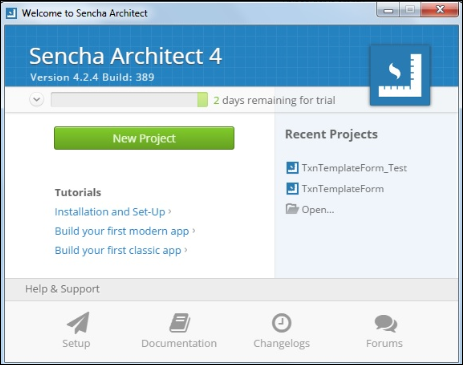
Open the Sencha Architect and click Open to select the unzipped Transaction/Template Form for editing. Click here for Sencha Architect Tutorial.
-
Design a form by using Sencha drag-and-drop feature. Choose components from the right hand panel and drop them on the center canvas.

-
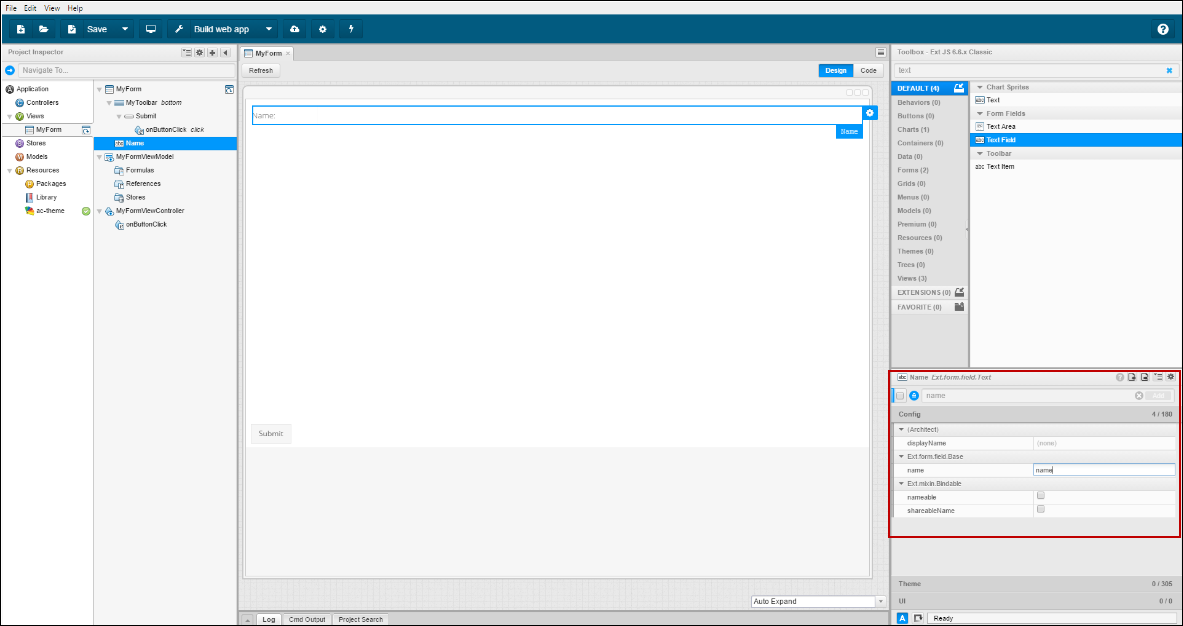
Select the field and search the Name attribute from the right hand attribute panel. Enter the Name which will appear in the JSON schema.
-
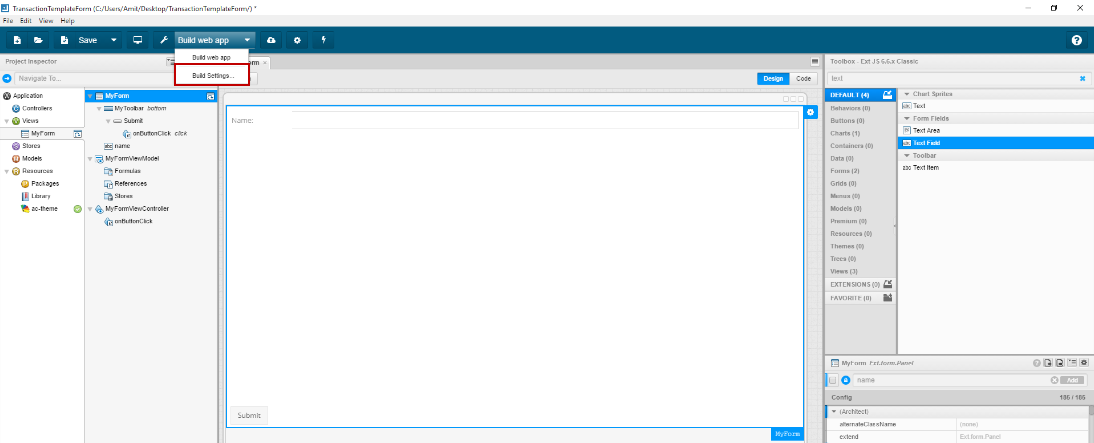
Click
 and select Build Settings in the Build Settingsfield.
-
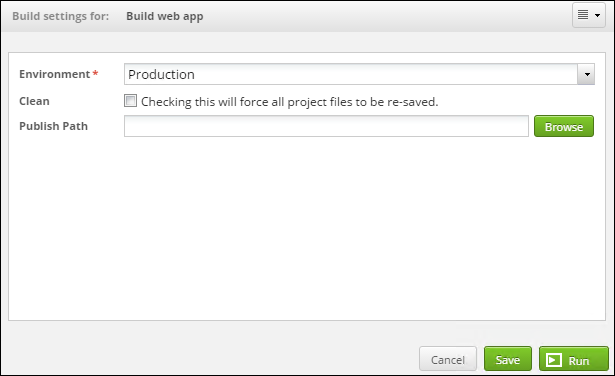
Select Production as Environment and provide the publish path. Click Saveand the application will appear with specified project name in the provided Publish Path.

Choosing Production as Environment will process your Web Form quickly as it compress the files. Click Preview button to preview the Web Form. Your default browser will open a new tab showing the Web Form.