Activating a Transaction
After you create a Transaction, you will be prompted to turn ON the Transaction. Unless you confirm it, the state remains OFF. You may choose to turn ON/OFF either at the time of creation or through the Transactions screen later. Turning ON a Transaction means activating a Transaction to start processing the files from the Source application to the Destination application. To turn ON the Transaction:
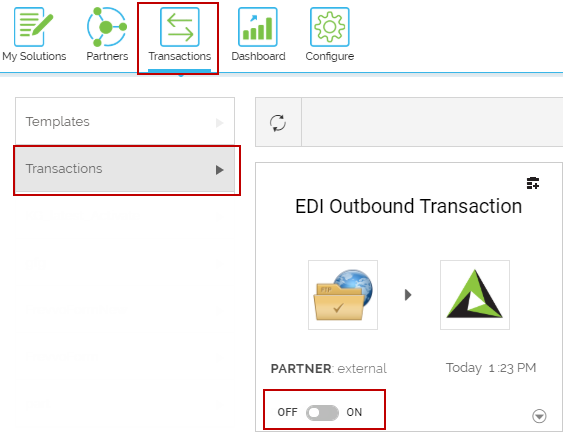
- Click Transactions> Transactions.
- On the Transactions screen, click
 to activate.
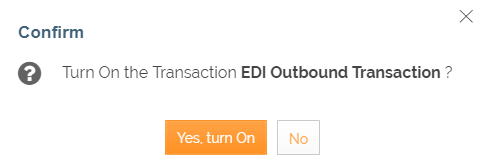
- Click Yes, turn On, when prompted to confirm.
- A mask displays over the Transaction indicating Activation is in-progress.
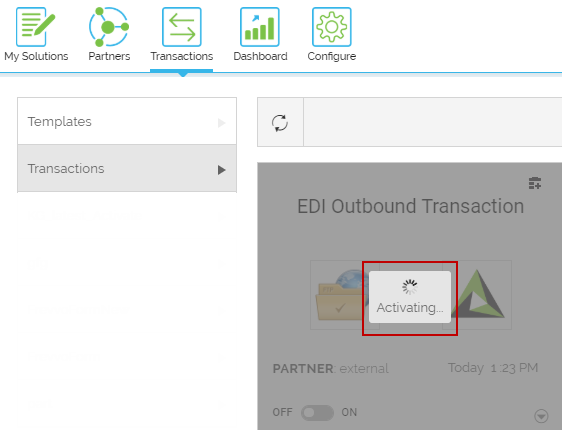
- The transaction will get activated within the configured time interval. However, if time exceeds, refresh icon will be displayed.
- Click refresh
 icon to activate the Transaction and a confirmation message is displayed.
 7. The
  icon depicts that the Transaction is activated.
 | You can sort the Transactions based on any of the columns available on the Transaction Manage page. |
|---|
You may be interested in...