SAP Server
SAP server is a service created in Adeptia Connect to facilitate the communication with SAP and thereby receive Intermediate Document (IDoc). It is a type of gateway or a proxy server that routes between client and SAP.
Creating a SAP Server
-
Click Configure > SAP > SAP Server.
-
Click Create SAP Server.
-
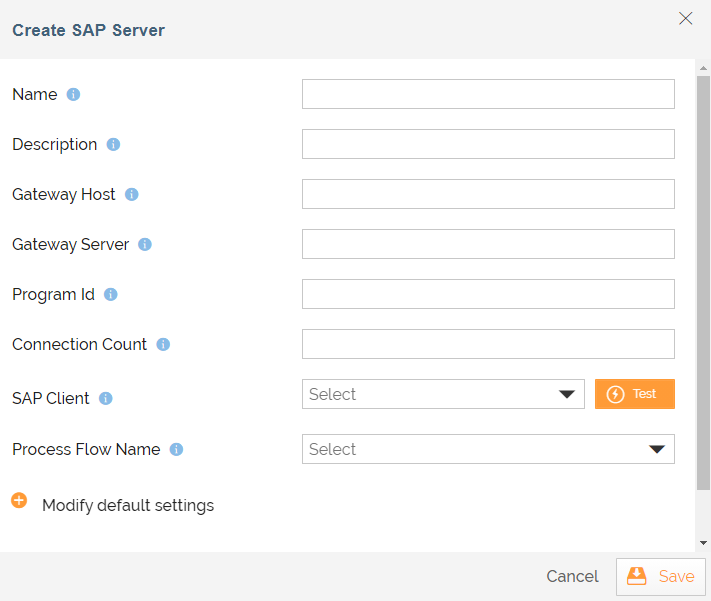
On the Create SAP Serverscreen, enter the details as explained in the table below:
Field Name Description Name Name of the SAP server. Description Description of the SAP server. Gateway Host Gateway host on which the server should be registered. Gateway Server Gateway service, that is, the port on which a registration can be done. Program Id The program ID with which registration is done. Connection Count The number of connections that should be registered at the gateway. SAP Client SAP client. Click Test to check whether the connection with SAP client is established successfully or not. Process Flow Name Name of the Process Flow. -
Expand Modify default settings option if you want to modify the default settings for SAP Server.
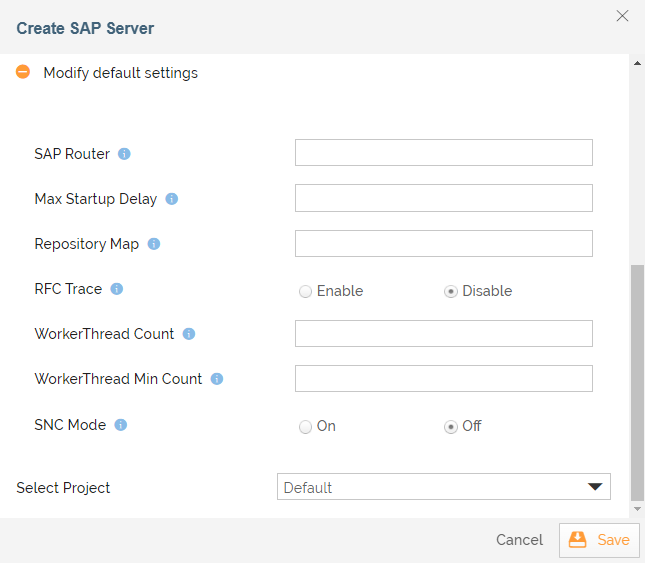
Field Name Description SAP Router SAP router string to use for a system protected by a firewall. The maximum time (in seconds) between two startup attempts in case of failures. Repository Map, if more than one repository should be used by JCoServer. RFC Trace Enable/disable RFC trace (1 or 0). WorkerThread Count Set the number of threads that can be used by the JCoServer instance. WorkerThread Min Count Set the number of threads always kept running by JCoServer. SNC Mode Secure Network Communications(SNC) mode, 0 (off) or 1 (on). -
Select the project from Select Project field.
-
Click Save.
-
Start the Server.

IDocs received from the SAP Server are stored in the ..<AdeptiaInstallDir>/Serverkernel/web/SAPIDocLocation folder.
You may be interested in...