Email Notification Format
Adeptia Connect notifies the user through an email about the execution status of a template or transaction. The format of the email notification can be either system defined or you can select or create a custom format while creating a template or a transaction.
This page contains the following information:
- Creating email notification format
- Email notification format guidelines
- Email Subject
- Email Body
- Template (success/failure) notification variables list
- Transaction (success/failure) notification variables list
- Logo in email notification
Creating email notification format
Follow the steps below to create a custom email notification format:
- Click Configure > OTHERS > Email Notification Format.
- Click Create Email Notification Format.
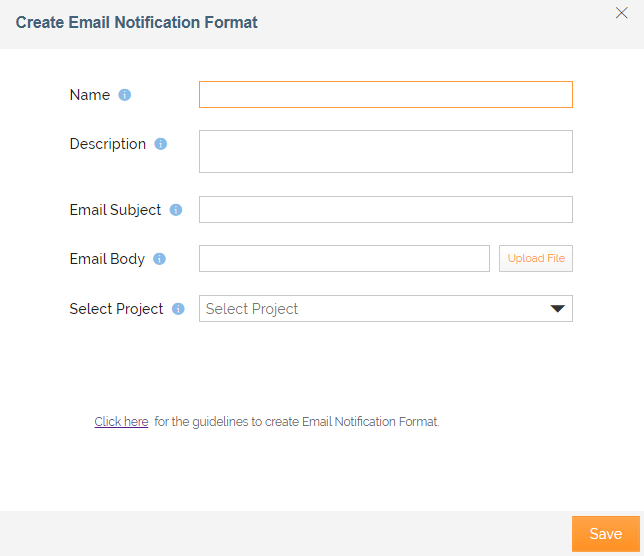
- Enter the name and description of email notification in the Name and Description fields respectively.
- Enter the subject of the email in the Email Subject field.
- Click Upload File button to upload the HTML file to create the email body.
- Select the project from the Select Project field.
- Click Save.
Email notification format guidelines
There are certain guidelines that you need to follow to have a customized email subject and body.
Email Subject
You can append the name of the services in the email subject by using the variables as given in the table below:
 | Use the variables as is. There should be no change in the text or case of the listed variables. |
|---|
| To display | Use variables | Description |
|---|---|---|
| Transaction Name | $$transactionName$$ | To display the transaction name in the email subject. |
| Partner Name (In transaction) | $$spokeCompanyName$$ | To display the Partner Name in the email subject of transaction. |
| Partner Name (In template) | $$hubCompanyName$$ | To display the Partner Name in the email subject of template. |
Email Body
By default, the body of the email notification is in tabular format. However, you can create and upload your own HTML file to send the email notification to the user in a format other than the tabular one.
You can append the name of the services in the email body by using the variables as given in the table below:
Template (success/failure) notification variables list
| To display | Use variables | Description |
|---|---|---|
| Environment | $$environmentName$$ | To display the environment name in the email notification. For example: Development, Testing, etc. |
| Partner Name | $$spokeCompanyName$$ | To display the Partner Name used in the transaction/template. |
| Transaction Name | $$transactionName$$ | To display the Transaction Name for which execution took place. |
| Source File Location | $$sourceFileLocation$$ | To display the Source File Location used in the transaction/template. |
| Source File Name | $$sourceFileName$$ | To display the Source File Name used in the transaction/template. |
| Source File Size | $$fileSize$$ | To display the Source File Size (in bytes) used in the transaction/template. |
| Template Name | $$templateName$$ | To display the Template Name for which execution took place. |
| Target File Location | $$targetFileLocation$$ | To display the Target File Location used in the transaction/template. |
| Target File Name | $$targetFileName$$ | To display the Target File Name used in the transaction/template. |
| Time | $$readableStartTime$$ | To display the readable start time. |
| Error Message | $$exceptionMessage$$ | To display the error occurred in the execution of template. |
Transaction (success/failure) notification variables list
| To display | Use variables | Description |
|---|---|---|
| Environment | $$environmentName$$ | To display the environment name in the email notification. For example: Development, Testing, etc. |
| Partner Name | $$hubCompanyName$$ | To display the Partner Name used in the transaction/template. |
| Transaction Name | $$transactionName$$ | To display the Transaction Name for which execution took place. |
| Source File Location | $$sourceFileLocation$$ | To display the Source File Location used in the transaction/template. |
| Source File Name | $$sourceFileName$$ | To display the Source File Name used in the transaction/template. |
| Source File Size | $$fileSize$$ | To display the Source File Size (in bytes) used in the transaction/template. |
| Time | $$readableStartTime$$ | To display the readable start time. |
| Error Message | $$exceptionMessage$$ | To display the error occurred in the execution of transaction. |
Logo in email notification
If user wants to add company logo in notification then **$$companyLogoPath$$**should be used in the uploaded HTML file, for example, <img src="$$companyLogoPath$$">.
| To display | Use variables | Description |
|---|---|---|
| Logo | $$companyLogoPath$$ | To display the company logo in the email notification. |
You may be interested in...