Mail Event
Use mail event when you want to trigger a process flow as soon as a mail server receives the email.
Creating mail event
- Click Configure > EVENTS > Mail Event.
- Click Create Mail Eventto create a new Mail event.
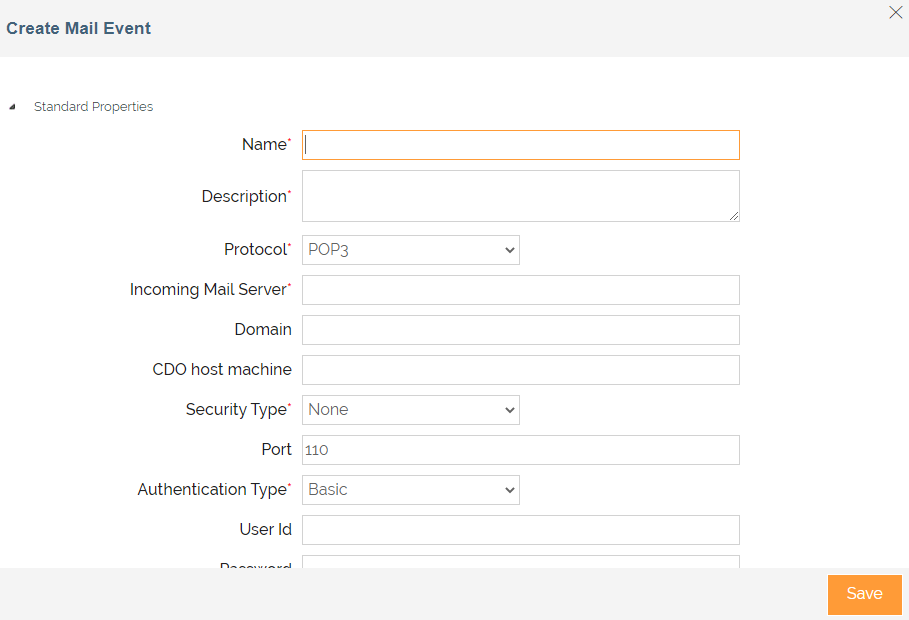
- On Create Mail Event screen, enter the values in each fields as explained in below table.
| Field Name | Description |
|---|---|
| Name | Name of the mail event. |
| Description | Description of then mail event. |
| Protocol | Internet Standard Protocol to be used for retrieving incoming emails. The available options are POP3 and IMAP4. Based on the selected protocol, the default port number for that protocol is displayed in the Port field. |
| Incoming Mail Server | Incoming mail server address. |
| Security Type | Protocol that provide data encryption and authentication between applications and servers in scenarios where that data is being sent across an insecure network. The available options are SSL, TLS, None. Supported TLS version is 1.2. |
| Port | Port number of the incoming mail server. |
| Authentication Type | Select the type of authentication from the Authentication Type field. The available options are Basic and OAuth 2.0. |
| OAuth Account | Select one of the available OAuth accounts from this field. It is available only when you select OAuth 2.0 as an authentication type. |
 | |
| User Id | Username of the mail server. |
| |
| Password | Password of the mail server. |
| |
| Confirm Password | Re-enter the password in the Confirm Password field. |
| Mail Search Criteria | Select any of the filter criteria: Sender E-mail, Mail Subject, Mail Content, File Attachment. You can select more than one filter criteria. Type either sender's email address, email subject, name of the attached file or email content in the Sender E-mail, Subject, File Attachment, Mail Content fields respectively. You can use asterisk and wild cards in the content of the email. Multiple email ids are separated by comma (,). |
| Event Start Date | Date from which event will start triggering. The date must be in MM/dd/yyyy format. |
| Time | Time when the event will start. |
| Event Expiry Date | Date on which event will stop triggering. The date must be in MM/dd/yyyy format. |
| Time | Time when the event will stop. |
| Polling Frequency | Time interval for the event to check the existence of the email. |
 |
- Expand Advanced Properties to view the advanced properties of an Mail Event.
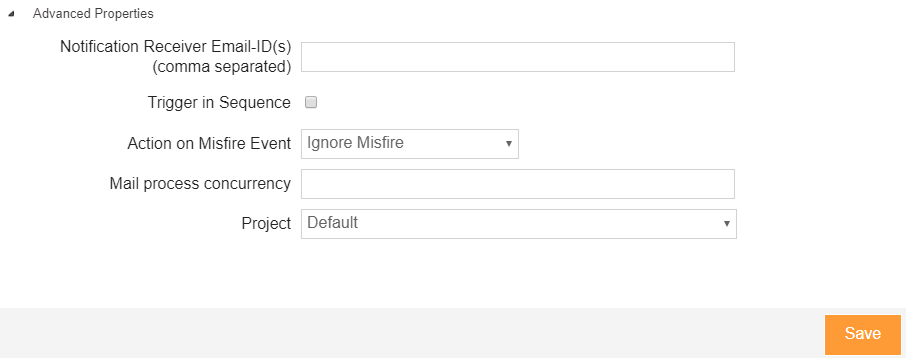 5. Type the email-id in the Notification Receiver Email-ID(s) (comma separated) to receive error emails related to this Mail event.
6. Select Trigger in Sequence check box to trigger the associated process flow in a sequential manner. If you do not select the Trigger in Sequence checkbox then the associated process flow will trigger concurrently.
7. If you want to enable misfire handling for your event then, select the Run Once option in the Action on Misfire Event field. If you do not wish to enable misfire handling for your file event then, select the Ignore Misfire option.
5. Type the email-id in the Notification Receiver Email-ID(s) (comma separated) to receive error emails related to this Mail event.
6. Select Trigger in Sequence check box to trigger the associated process flow in a sequential manner. If you do not select the Trigger in Sequence checkbox then the associated process flow will trigger concurrently.
7. If you want to enable misfire handling for your event then, select the Run Once option in the Action on Misfire Event field. If you do not wish to enable misfire handling for your file event then, select the Ignore Misfire option.
| The Run Once option will run only one collective instance of all the misfires for a particular event. Whereas the Ignore Misfire option will not run a misfired event. |
|---|
-
If a large number of e-mails in the mailbox is meeting the search criteria, then all the e-mails will be processed at a time. If you want to limit the number of e-mails to be processed at a time with this event, type the specified value in the Mail Process Concurrency field.
Mail event will process only the specified number of e-mails at a time, and the remaining e-mails will process based on the next polling frequency. E-mails are processed on First In First Out (FIFO) basis.
-
Select the Project in the Project field**.**
-
Click Save.
If a mail event is deactivated and then activated again, it will trigger an event for an existing email. A mail event can trigger multiple process flows at a time. Each process flow uses a mail source. When multiple process flows use a mail source at a time, errors can occur.
Therefore, it is advisable to limit the number of process flows triggered by a mail event. You can also set the number of retries and the sleep time between each retry, in case an error occurs when using a mailbox.You can sort the Mail Events based on any of the columns available on the Mail Event Manage page.
You may be interested in...