Spazio MFT/s Connection
You can connect Spazio Server from Adeptia Connect if both Spazio Server and Adeptia Connect are installed on different servers or same servers. After creating the connection service, you can use this service while creating Spazio MFT/s Listener and Spazio MFT/s Target services.
Follow the steps below to create a Spazio MFTs Connection:
-
Click Configure > ACCOUNTS > Spazio MFT/s Connection.
-
Click Create Spazio MFT/s Connection.
-
On the Create MFT/s Connection screen, provide the details of the Spazio Server.
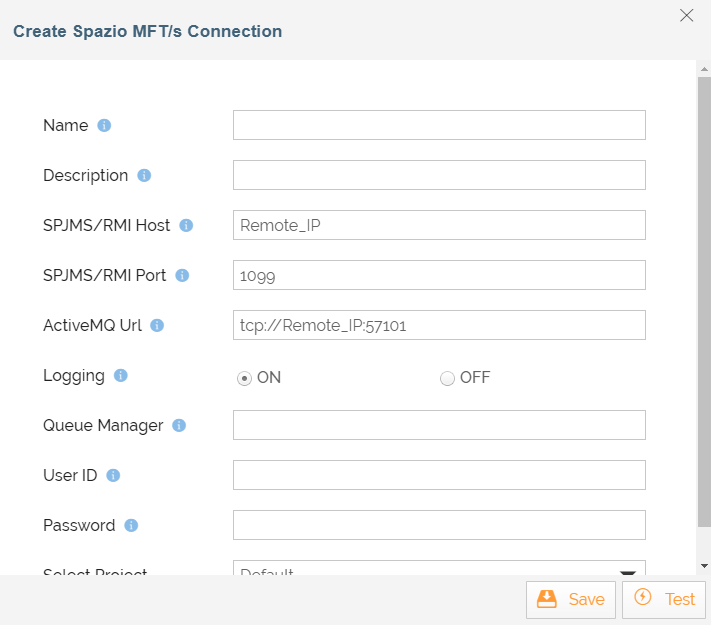
Field Name Description Name Name of the new connection activity. Description Description of the new connection activity. SPJMS/RMI Host IP address hosting Spazio MFT server. In case, both Adeptia Connect and Spazio server are installed on the same server then type localhost. SPJMS/RMI Port Port number hosting Spazio MFT server, default is 1099. ActiveMQ Url URL of the Active MQ Spazio server in the format: tcp://><IP_address_hosting_Spazio_Server>:<port_number_hosting_Spazio_server.
If you are using Spazio MFT server port other than the default port number (1099) then provide the port number in the URL otherwise keep it 57101.Logging Whether you want to generate logs or not. Queue Manager Name of the queue manager created in the Spazio MFT server. User Id User id of the Spazio server. Password Password of the Spazio server. Select Project Select the project from the list. -
Click Test to test the connection with the Spazio server.
-
Click Save.
You may be interested in...