OAuth Account
You can create OAuth Account to generate Access Token. Follow the steps below to create OAuth Account.
-
Click Configure > ACCOUNTS > OAuth.
-
Click CREATE OAuth account.
-
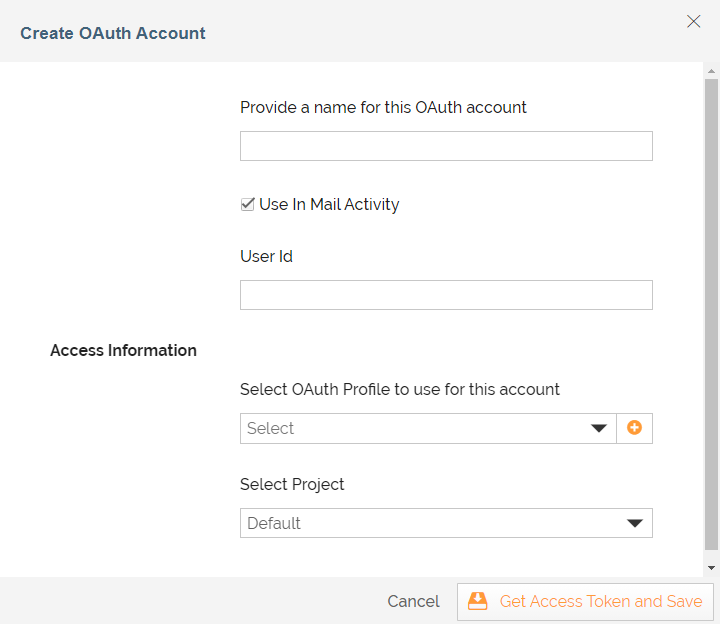
On the Create OAuth Account screen, provide the name of the OAuth Account in the Provide a name for this OAuth account field.
-
Select the Use In Mail Activity check box if you want to use this OAuth Account for mail services.
-
In the User Id field, enter the User Id.

This User Id field appears only when you have selected the Use In Mail Activity check box. -
Select the OAuth Profile that you have created in the Select OAuth Profile to use for this account field.
Or, you can also create a new OAuth Profile by clicking  .
7. Select the Project in the Select Project field**.**
8. ClickGet Access Token and Save.
.
7. Select the Project in the Select Project field**.**
8. ClickGet Access Token and Save.
 | To fetch the access token, login with the same user Id that you have used in the step 5. |
|---|
This creates your OAuth Account in Adeptia Connect.
You may be interested in...