Creating Activity in Process Designer
You can create activities from Web Process Designer. You can create activities using these options.
Steps to create Activity from Repository View Panel:
- In Web Process Designer, click Repository View icon. All the items in the Activities are displayed.
- Select the activity which you want to create. For example, create a Adv. Database Source Activity.
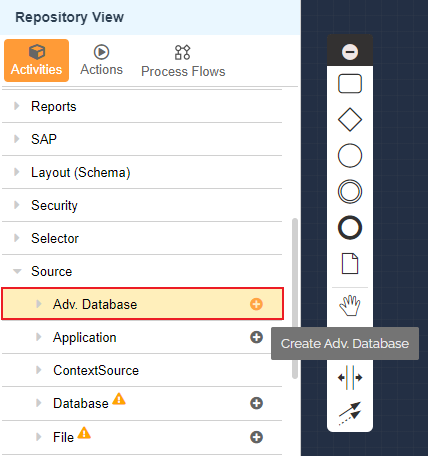 3. Click Create Database
  icon to open New Adv. Database Source screen.
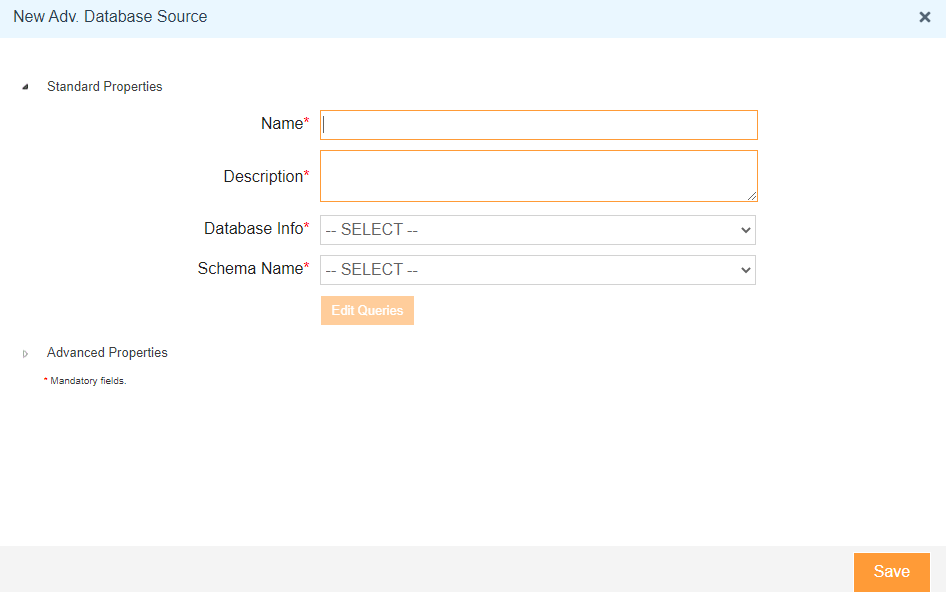 4. Click here and follow the steps to create Adv. Database Source Activity.
Steps to create Activity from Activity Properties Panel:
- Click the Activity and select View Properties
 icon from the context pad.
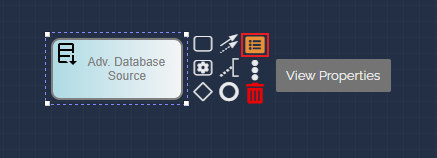
- It displays the Activity Properties panel.
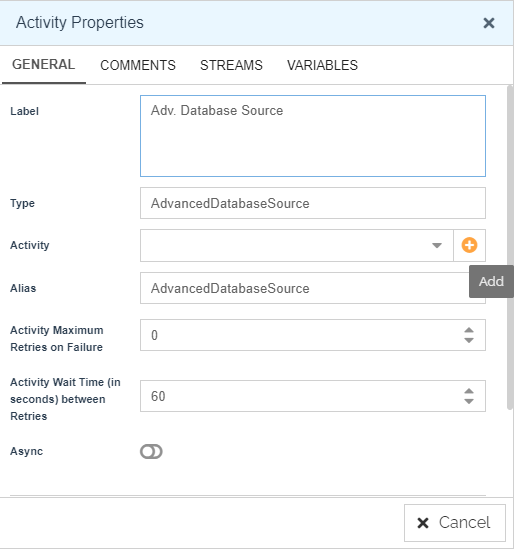
- Click Add
 icon of Activity field to open New Adv. Database Source screen.
 - Click here and follow the steps to create Adv. Database Source Activity.
Steps to create Activity using Context Pad:
- Click the Activity and select Options
 icon from the context pad.
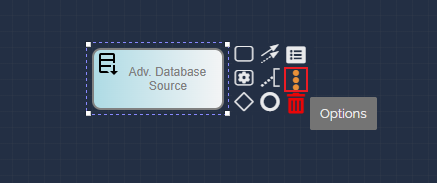
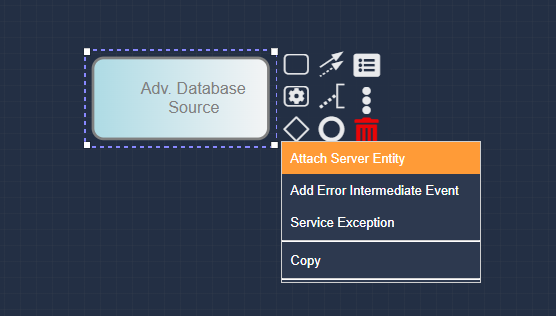
- Click Attach Server Entity from the list to open Repository View screen.
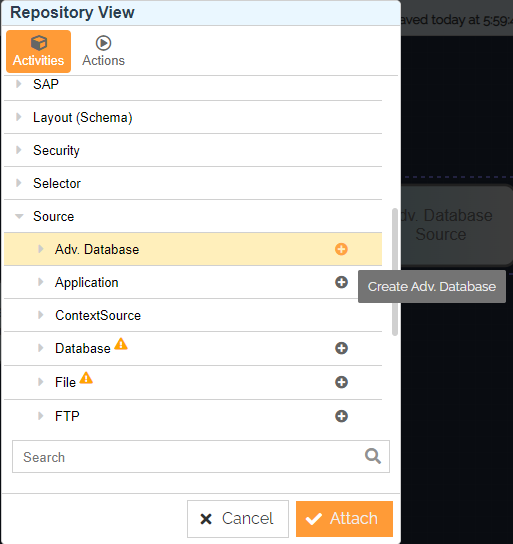
- Click the Create Database
 icon for Source Database to open New Adv. Database Source screen.
- Click here and follow the steps to create Adv. Database Source Activity.
You may be interested in...