Navigating the Home Page
The following description helps you get used to the interface (home page) once you log into Adeptia Connect.
 | The home page for premier and professional edition of Adeptia Connect has a different look and feel than the one described below. |
|---|
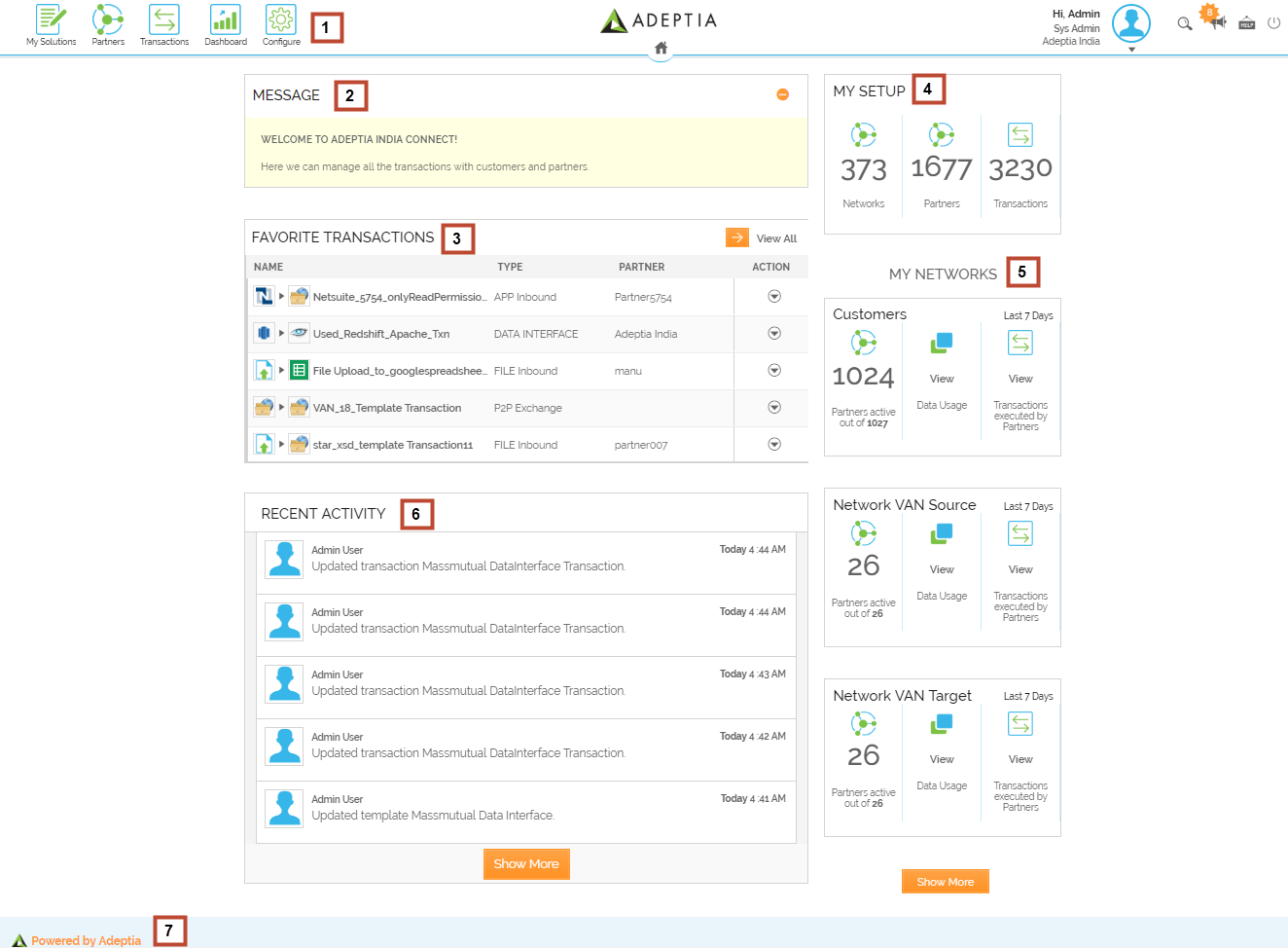
Adeptia Connect home page consists of following sections:
- Top Pane
- Message
- Favorite Transactions
- My Setup
- My Networks
- Recent Activity
- Bottom Pane
-
Top Paneconsists of Partners, Transactions, Dashboard, and Configure buttons on the left and Accounts, Global Search, Message Center, Help, and Logout icons on the right.

-
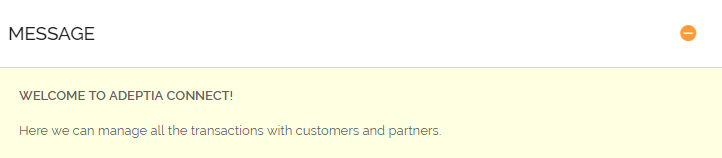
Message displays the Welcome message.
-
Favorite Transactions display your favorite Transactions that can be directly accessed from this section.
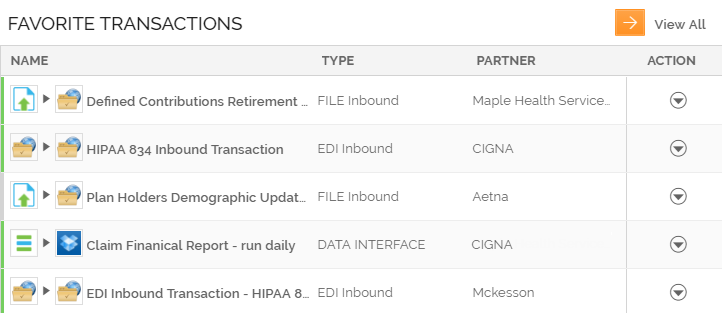
You can remove a transaction from the favorite transactions list on the home page. Click more menu and select "Remove from Favorite" from the list to delete the transaction. -
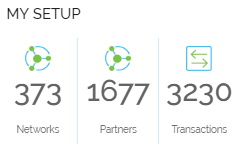
My Setupdisplays your account details including total number of Networks, Partners, and Transactions.
-
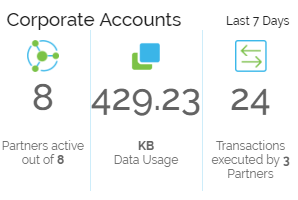
My Networksdisplay all the Networks of your account including the total number of Partners activated in a Network, data consumed by the Transactions, and the total number of Transactions executed by the Partners of that Network.
-
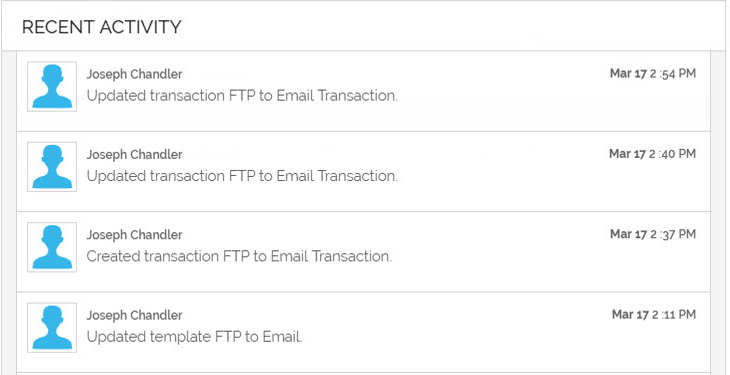
Recent Activitydisplays the recent activities performed on your account.
-
Bottom Paneprovides a link to Adeptia website.

Next Step
You may be interested in...