Microsoft Dynamics CRM
Microsoft Dynamics CRM is a customer relationship management (CRM) business solution that drives sales productivity and marketing effectiveness through social insights, business intelligence, and campaign management in the cloud, on-premises, or with a hybrid combination.
For more information, click here.
 | Ensure that you have downloaded the drivers to use the application in Adeptia Connect. |
|---|
Field (Account) Information
While configuring the Source or Destination of a Template or Transaction, you need to create an account to connect Microsoft Dynamics CRM with Adeptia Connect. While creating an account, you need to specify the location from where Adeptia Connect will access the data.
Click  to add an account.

Specify the following information for Dynamics CRM:
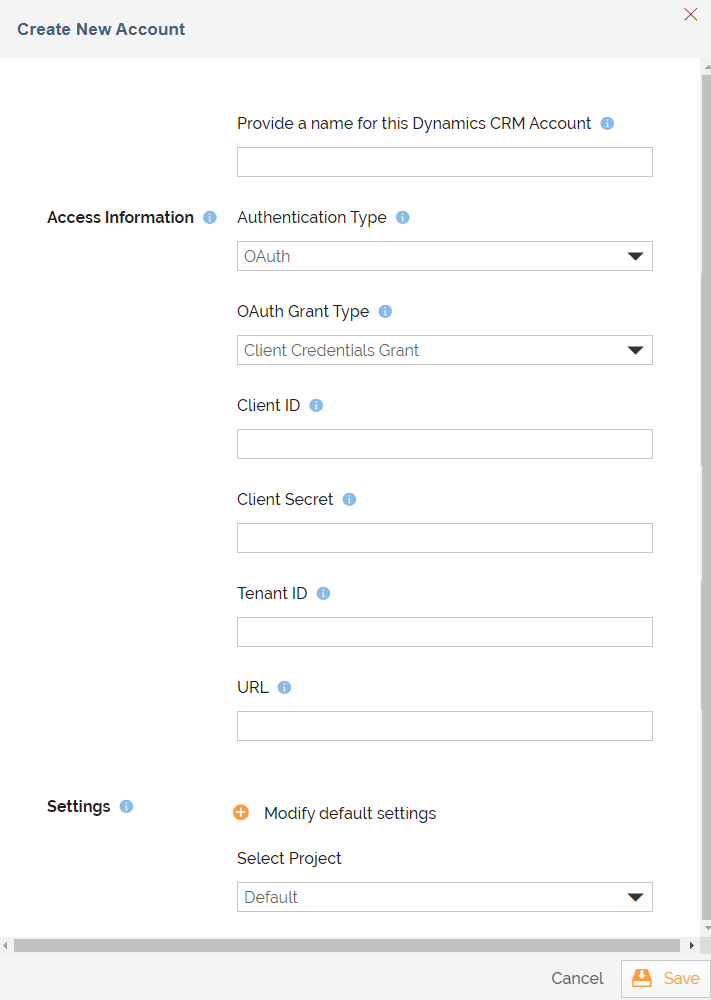
| Field Name | Description |
|---|---|
| Account Name | A short, descriptive name that helps you re-use this account in future. |
| Authentication Type | The type of authentication you may want to use. The available options are OAuth, Basic, and Other. Based on the type of authentication you select, enter the values for the fields described in the table below: |
| URL | The URL of your organization. This is needed because Microsoft Dynamics CRM is a multi-tenant environment. A single Microsoft Dynamics CRM server can host multiple business organizations. By specifying the URL, the application can determine the endpoint address URL to access your organization’s business data. |
| Modify default settings | The field for entering the additional authentication parameters as key-value pairs separated by comma. |
| Select Project | The project that you want to associate with the Dynamics CRM account. |
Triggers
A Trigger specifies when a particular Transaction will start executing. While configuring the Source of a Template, you need to choose an event.
Following triggers are available for Dynamics CRM at Source.
| Trigger Name | Description |
|---|---|
| On Records | Triggers when the new records are added. |
| On Records Added or Updated | Triggers when the new records are added or existing records are updated. |
| All Records | Extracts all records starting from the beginning. |
Actions
An Action specifies how the data will be transferred at the destination location. While configuring the Destination (Target) of a Template, you need to choose an action.
Following actions are available for Dynamics CRM at Destination.
| Action Name | Description |
|---|---|
| Add Records | Adds the new records in the account. |
| Update Existing Records | Updates existing records in the account. |
| Add Records or Update Existing Records | Adds the new records or updates existing records in the account. |