FTP
File Transfer Protocol (FTP) component allows you to transfer files from and to various FTP servers.
Field (Account) Information
While configuring the Source or Destination of a Template or Transaction, you need to create an account to connect FTP with Adeptia Connect. While creating an account, you need to specify the location from where Adeptia Connect will access the data.
Click  to add an account.

Specify the following information for FTP:
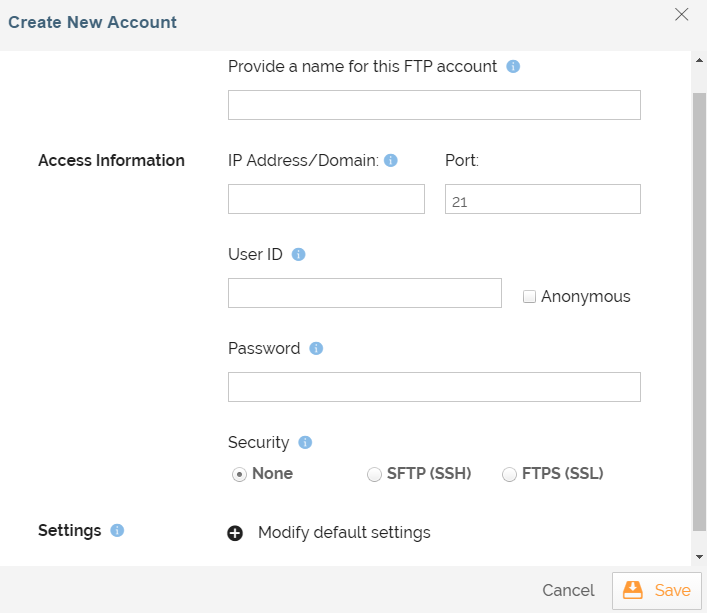
| Field Name | Field Name | Description |
|---|---|---|
| Account Name | A short, descriptive name that helps you re-use this account in the future. | |
| IP Address/Domain | Provide IP address or full hostname of the FTP server. | |
| Port | Enter port number of the FTP Server. | |
| User ID | User ID to log into FTP account. | |
| Anonymous | FTP users may connect anonymously if the server is configured to allow it. | |
| Password | Password to log into FTP account. | |
| Security |  | |
| Modify Default Settings | Transfer Type | • Passive: In passive mode FTP, the client initiates both connections to the server, solving the problem of firewalls filtering the incoming data port connection to the client from the server. When opening an FTP connection, the client opens two random unprivileged ports locally (N > 1023 and N+1). The first port contacts the server on port 21, but instead of then issuing a PORT command and allowing the server to connect back to its data port, the client will issue the PASV command. The result of this is that the server then opens a random unprivileged port (P > 1023) and sends P back to the client in response to the PASV command. The client then initiates the connection from port N+1 to port P on the server to transfer data. • Active: In active mode FTP, the client connects from a random unprivileged port (N > 1023) to the FTP server's command port, port 21. Then, the client starts listening to port N+1 and sends the FTP command PORT N+1 to the FTP server. The server will then connect back to the client's specified data port from its local data port, which is port 20. The FTP client does not make the actual connection to the data port of the server. It simply tells the server what port it is listening on and the server connects back to the specified port on the client. From the client side firewall, this appears to be an outside system initiating a connection to an internal client something that is usually blocked. |
| Transfer mode | This option is used to specify the mode in which the Source file is transferred to/from the FTP server. The available options are: • BINARY: A Source file is transferred bit by bit (as the raw data without any modification) from one system to another. Both the files (the Source file and the Destination file) will contain exactly the same sequence of bytes. In this way, the file is transferred in its exact original form. • ASCII: Source file is not transferred bit by bit as the transferred data is considered to contain only ASCII formatted text. Therefore, the Destination file that receives the transferred data is responsible for translating the format of the received data to the format that is compatible with the operating system at the client-end. | |
| Select Project | Select the project. | |
| Preferred Authentications | Enter your preferred authentication methods. This field is available only when you select SFTP as the protocol. The default set of authentication methods for FTP Account is publickey,keyboard-interactive,password. | |
| Add On Configurations | To be used in back end for performing operation on the FTP server, for example, param1=value¶m2=value. |
Triggers
A Trigger specifies when a particular Transaction will start executing. While configuring the Source of a Template, you need to choose an event.
Following triggers are available for FTP at Source.
| Trigger Name | Description |
|---|---|
| On File Created | Triggers when a file is created. |
| On File Modified | Triggers when an existing file is modified. |
Actions
An Action specifies how the data will be transferred at the destination location. While configuring the Destination (Target) of a Template, you need to choose an action.
Following actions are available for FTP at Destination.
| Create File | Creates a file (with a unique name) at the specified location. | | Copy File From Trigger | Creates a file (with the same name as the source file) at the specified location. |
| Action Name | Description |
|---|