FreshBooks
FreshBooks makes your accounting tasks easy, fast and secure. Create a snappy new invoice using FreshBooks and have tracking and data entry done for you. Simply add your logo, payment terms and client info, then watch totals and taxes get calculated for you (plus have it automatically pulled into your reports). You can send an invoice in any currency, too.
For more information, click here.
Field (Account) Information
While configuring the Source or Destination of a Template or Transaction, you need to create an account to connect FreshBooks with Adeptia Connect. While creating the account, you need to specify the location from where Adeptia Connect will access the data.
Click  to add an account.

Provide a name to the account, and select a project in the Select Project field.
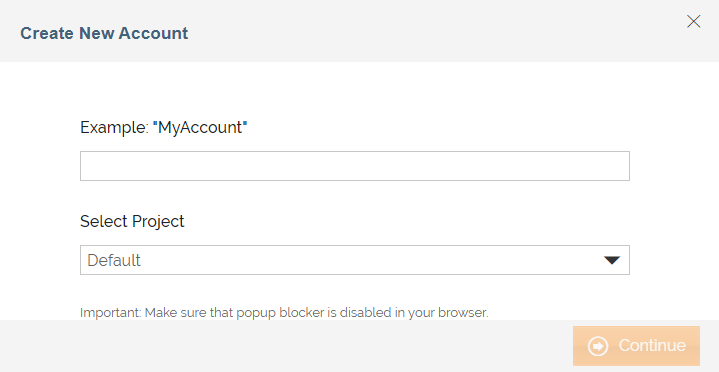
| Field Name | Description |
|---|---|
| Account Name | A short, descriptive name that helps you re-use this account in future. |
| Select Project | Name of the project. |
Click Continue.
Enter your FreshBooks login credentials.
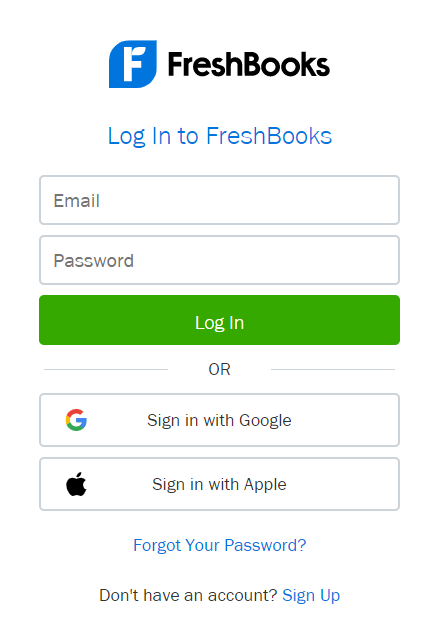
| Field Name | Description |
|---|---|
| Username | Your FreshBooks username. |
| Password | Your FreshBooks password. |
Triggers
A Trigger specifies when a particular Transaction will start executing. While configuring the Source of a Template, you need to choose an event.
Following triggers are available for FreshBooks at Source.
| Trigger Name | Description |
|---|---|
| New Client | Triggers when a client is added or updated. |
| New Estimate | Triggers when an estimate is added or updated. |
| New Expense | Triggers when an expense is added or updated. |
| New Invoice | Triggers when an invoice is added or updated. |
| New Payment | Triggers when a payment is added or updated. |
| New Task | Triggers when a task is added or updated. |
| New Tax | Triggers when a tax is added or updated. |
| New Time Entry | Triggers when a time entry is added or updated. |
| New Project | Triggers when a new project is added or updated. |
| New Staff | Triggers when a new staff is added or updated. |
Actions
An Action specifies how the data will be transferred to the destination location. While configuring the Destination (Target) of a Template, you need to choose an action.
Following actions are available for FreshBooks at Destination.
| Action Name | Description |
|---|---|
| Create Client | Creates a Client. See http://www.freshbooks.com/developers/docs/clients |
| Create Estimate | Given a client, creates an estimate. See http://www.freshbooks.com/developers/docs/estimates |
| Create Expense | Creates an expense. See http://www.freshbooks.com/developers/docs/expenses |
| Create Invoice | Creates an invoice. |
| Create Item | Creates an item. Items can be anything you want from a subscription to a lawnmower, and not necessarily a tangible item. See http://www.freshbooks.com/developers/docs/items |
| Create Payment | Creates a payment. |
| Create Project | Creates a project. Projects in FreshBooks is your key to tracking your time! Create a project for your client and keep track of all the time you have spent on a repair job, the next great website, or a legal case. If you have staff members or contractors that are helping you out with a project, you can invite them to the project and they will also have the ability to track time to the tasks associated with the project. See http://www.freshbooks.com/developers/docs/projects |
| Create Staff | Creates a new staff member. |
| Create Task | Creates a task. Tasks are used for billing at hourly rates (fixed rate, variable time). Tasks can be assigned to projects for time tracking and re-billing purposes. See http://www.freshbooks.com/developers/docs/tasks |
| Create Tax | Creates a tax. FreshBooks features tax friendly categories to make filing your taxes much easier. These new default categories organize your expenses so they are mapped to categories found on common tax forms in countries such as the US, Canada, the UK, Australia and New Zealand. In addition, FreshBooks lets you add your own subcategories to the existing defaults provided, enabling you to keep an even more detailed record of your business expenses See http://www.freshbooks.com/developers/docs/taxes |
| Create TimeEntry | Creates a new timesheet entry. |
| Update Client | Updates the details of the client with the given client_id. Any fields not referenced in the request will remain unchanged. |
| Update Estimate | Updates an existing expense with the given estimate_id. |
| Update Expense | Updates an existing expense with the given expense_id. |
| Update Invoice | Updates an existing invoice with the given invoice_id. |
| Update Item | Updates an existing item. All fields aside from the item_id are optional; omitting a field, the existing value will remain unchanged. |
| Update Payment | Updates an existing payment. All fields besides payment_id are optional. Fields that are not passed will retain their existing value. |
| Update Project | Updates an existing project. |
| Update Staff | Updates an existing staff member. |
| Update Task | Updates an existing task. |
| Update Tax | Updates an existing tax. All fields aside from the tax_id are optional; by omitting a field, the existing value will remain unchanged. |
| Update Time Entry | Updates an existing time_entry. |
| Delete Client | Deletes the client with a given client_id. |
| Delete Estimate | Deletes an existing estimate. |
| Delete Expense | Deletes an existing expense. |
| Delete Invoice | Deletes an existing invoice. |
| Delete Item | Deletes an existing item. |
| Delete Project | Deletes an existing project. |
| Delete Payment | Permanently deletes a payment. This will modify the status of the associated invoice if required. |
| Delete Staff | Deletes the specified staff member. |
| Delete Task | Deletes an existing task. |
| Delete Tax | Deletes an existing tax. |
| Delete TimeEntry | Deletes an existing time_entry. This action is not recoverable. |