Dropbox
Dropbox allows you to store, synchronize and share files online with public access. You can store your files in Dropbox and access them from your computers, phones, tablets, etc. You can edit docs, automatically add photos, and share videos from anywhere. Anything you upload to Dropbox is set to private by default. However, you can control who sees your uploads.
For more information, click here.
Field (Account) Information
While configuring the Source or Destination of a Template or Transaction, you need to create an account to connect Dropbox with Adeptia Connect. While creating the account, you need to specify the location from where Adeptia Connect will access the data.
Click  to add an account.

Specify the following information:
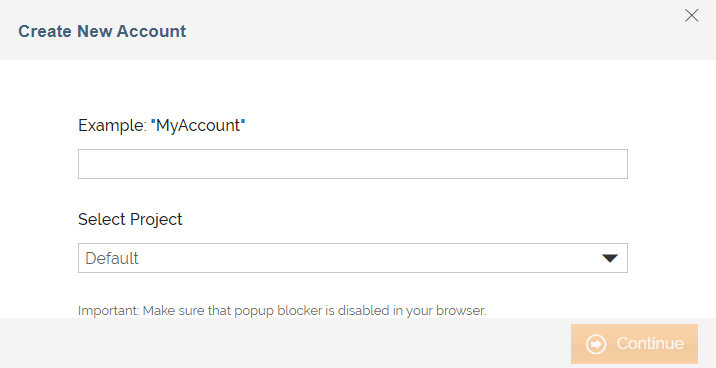
| Field | Description |
|---|---|
| Account Name | A short, descriptive name that helps you re-use this account in future. |
| Select Project | Name of the project. |
Click Continue.
The Dropbox login page opens.
Enter your Dropbox email ID and password, and click Sign in.
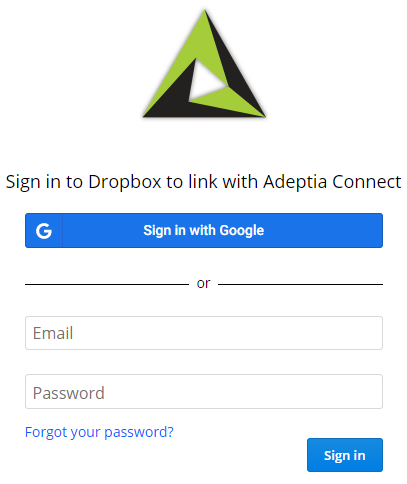
| Field Name | Description |
|---|---|
| Email ID you use for logging in to your Dropbox account. | |
| Password | Password of your Dropbox account. |
Triggers
A Trigger specifies when a particular Transaction will start executing. While configuring the Source of a Template, you need to choose an event.
Following triggers are available for Dropbox at Source.
| Trigger Name | Description |
|---|---|
| New File in Directory | Triggers when a file is added to the Dropbox directory. |
Actions
An Action specifies how the data will be transferred to the destination location. While configuring the Destination (Target) of a Template, you need to choose an action.
Following actions are available for Dropbox at Destination.
| Action Name | Description |
|---|---|
| Create File | Creates a file (with a unique name) at the specified location. |
| Copy File From Trigger | Creates a file (with the same name as Source file) at the specified location. |