Mapping matching fields of IdP user
User attribute mapping is used for identifying fields in the Service Provider that you want to map with those in the IdP server by synchronizing them on login. It compares the values in the SAML response in case-insensitive manner.
You can map any user field to any arbitrary SAML attribute. For example, you can map the user’s username as a Name.
Follow the steps given below to map the fields:
- Go to the …<ConnectServerInstallFolder>\AdeptiaServer\ServerKernel\etc\saml folder.
- Open SAMLSSOConfiguration.xml file in the text editor.
- Map SAML assertion attributes to Adeptia user fields in the file as shown in the following screenshot.
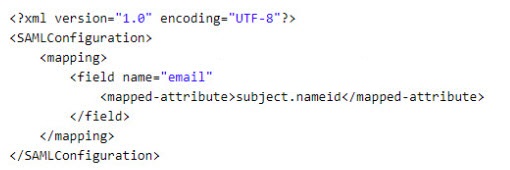
Where,
-
<field> is the Adeptia user field.
-
name contains the user's attribute, for example, its email, or first name, etc. available in the AU_USERS table in the database. Refer to the following table for more details on the user's attributes that you can enter as a value for the name attribute in the SAMLSSOConfiguration.xml file.
User's attribute Database column name
(In AU_USERS table)email au_email entityName au_entityName id au_id description au_description project au_projectOwner userType au_userType firstName au_firstName lastName au_lastName title au_title orgName au_orgName address1 au_address1 address2 au_address2 city au_city state au_state country au_country orgUrl au_orgUrl mobile au_mobile phone au_phone fax au_fax zip au_zip colleague au_colleague manager au_manager -
<mapped-attribute> is the SAML assertion attribute.
Once you have mapped fields successfully, next step is to create users in Adeptia Connect.
 | User must exist both in SAML and Adeptia Connect to be authenticated. For information on how to create users, refer to Creating users. |
|---|