Assigning Role to a user
Once a role is created, you can assign that role to a user. You can assign role to an existing user and a new user. To assign a role to a new user, select the role while inviting a user.
 | Only a System Admin and an IT User can assign role to users. |
|---|
To assign role to an existing user, follow these steps:
-
Go to Account and click Users.
-
On Users manage screen, select the user to whom you want to assign a Role.
User status must be Inactive to edit and assign the role. To know about the deactivating a user, click here. -
Click the Action icon. The list of possible actions is displayed.
-
Click Edit to assign a role to the user.
-
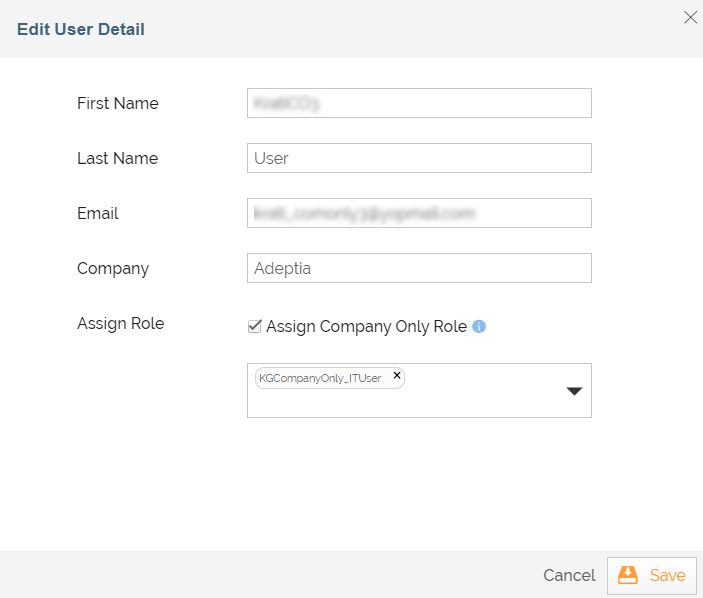
On Edit User Detail screen, configure the role from the Assign Roleoption by following the steps given below:
-
Select the Assign Company Only Rolecheckbox if you want to assign a Company Only type of role to the user, else, complete the steps b andcgiven below. On selecting the Assign Company Only Rolecheckbox, you need to select a Company Only type of role. If you select multiple Company Only type of roles, you need to select a default role in theDefault Role field.
-
In the Company/Partnerfield, select a Company/Partner.
You can select multiple Companies and Partners. -
In the Role field, select the user role (IT, Business, Sys Admin, View Only, or any custom role you may have on the list).
• The user rights may vary depending upon the role you select here. For more information, click here.
• If you select multiple roles, you need to select a default role in the Default Role field. -
ClickSave. A message is displayed confirming that User has been updated successfully.
You may be interested in...